
Your First Plugin
This tutorial builds a real home-screen widget for HelixScreen: hour meters for consumable parts (a HEPA filter, a nozzle, linear rails) shown as a ring gauge that adapts to whatever size the user gives it. Everything here runs against the mock printer; nothing touches a real machine.
The finished plugin ships in the repository at
examples/plugins/maintenance-meter, and the plugin API reference is
PLUGIN_DEVELOPMENT.md. This page is the story of
building it: every step is the code that made it work and the reason it is
built that way.
What we are building
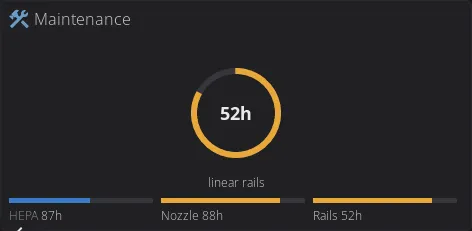
Section titled “What we are building”A consumables meter answers one question at a glance: how close is the part I maintain to needing service? The ring shows the proportion of the interval spent, the color moves from the theme primary to warning at 75 percent and danger at due, and the number inside is hours left. The detail overlay shows every meter with its history line and a reset button.
The widget is one component that adapts to its size, and that is the design bar for every home widget, plugin or core:
- Home pages are unlimited and users resize widgets freely, so a widget is never designed around scarce space. One adaptive widget, not several fixed ones.
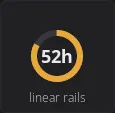
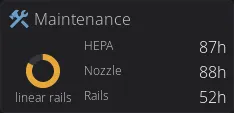
- Content grows progressively as the tile grows, when the extra pixels carry extra information: the smallest cell shows one ring, two columns add a row per meter, two rows add a bar strip under the ring.
- Text that must be centered is a label, never canvas-drawn text. The drawing API has no font metrics; LVGL centers a label exactly.
- The tile is a glance. The tap opens the detail.
The plugin system in one minute
Section titled “The plugin system in one minute”A plugin is a folder of Lua and XML that runs on the screen in its own sandboxed Lua 5.4 state. There is no compilation: edit a file, save, and a native dev build reloads the plugin within about a second.
Three ideas carry the whole system:
- Subjects are the plugin output. Lua registers named values
(
helix.subject.int,helix.subject.string), XML binds to them (bind_text), and the UI updates when they change. A plugin never touches a widget directly. - The canvas draws. A
plugin_canvaselement in XML is an empty surface; Lua stages lines, arcs, rects and text into a display list and commits it, and the widget replays that list in its own draw event. Lua never runs during rendering. - Permissions gate the dangerous calls. This plugin asks for none until it persists data; everything it needs here (subjects, canvas, widget hooks, the mock printer state) is permission-free.
Step 0: the edit-save-watch loop
Section titled “Step 0: the edit-save-watch loop”Run HelixScreen from a checkout with a plugin directory attached:
mkdir -p my-plugins/maintenance-meterHELIX_PLUGIN_DIR=$PWD/my-plugins ./build/bin/helix-screen --test -vv--test runs the mock printer. HELIX_PLUGIN_DIR replaces the printer
plugin source with your folder while it is set, and saving any file in the
plugin reloads it in about a second. Keep a terminal on the log: every
plugin line is tagged [plugin maintenance-meter], including the reason a
load was rejected.
A new plugin is not enabled by itself. Settings > Plugins shows it after the first load; enabling it asks for consent only when it requests permissions. Then add the tile from the home panel edit mode: long-press any tile, the plus button in the navbar opens the widget catalog, and the plugin tile sits under the Plugins category. A tile needs free cells; if the page is full, add a page. The saved placement survives the plugin being disabled or absent and returns when it loads again.
Step 1: the manifest
Section titled “Step 1: the manifest”manifest.json describes the plugin to the screen:
{ "id": "maintenance-meter", "name": "Maintenance Meters", "version": "0.1.0", "author": "HelixScreen", "description": "Hour meters for consumables as an adaptive home tile.", "permissions": [], "widgets": [ { "id": "maintenance-meter__tile", "name": "Maintenance", "icon": "wrench", "component": "maintenance-meter__tile", "colspan": 1, "rowspan": 1, "max_colspan": 4, "max_rowspan": 2 } ], "settings": [ { "key": "filter_interval_h", "type": "int", "label": "HEPA filter interval (h)", "min": 0, "max": 2000, "default": 200 }, { "key": "nozzle_interval_h", "type": "int", "label": "Nozzle interval (h)", "min": 0, "max": 2000, "default": 500 }, { "key": "rails_interval_h", "type": "int", "label": "Linear rails interval (h)", "min": 0, "max": 2000, "default": 300 } ]}The decisions worth copying:
- The id is lowercase with hyphens (
^[a-z][a-z0-9-]{1,31}$, never an underscore), and the folder name must equal it. Everything the plugin registers is<id>__<name>with a double underscore: component files, widget ids, subjects, object names in XML. App names use single underscores, so the double underscore is both the proof a name belongs to a plugin and the limit of what it can reach. - One widget, authored at 1x1, resizable to 4x2.
colspanandrowspanare the authored size;max_colspanandmax_rowspanbound what the user may drag it to. Authored small with a real maximum is the adaptive design bar: the widget earns information as it grows, so the smallest placement is valid and the largest is a dashboard. - Settings are declared, not coded. Each entry becomes one row of a generated settings screen, stored and validated by the host. An int interval is a slider; 0 means the meter hides. No plugin code runs to present or persist configuration, and that is the point: config UI is a solved problem the plugin inherits.
- Permissions start empty. Nothing in this tile needs one: subjects,
the canvas, widget hooks and printer state are free. The
storagepermission arrives with the pass that persists elapsed hours, and the consent dialog will then show exactly one line, because consent tracks what the plugin actually does.
Step 2: the tile skeleton
Section titled “Step 2: the tile skeleton”One XML file per component, under ui/, named
maintenance-meter__tile.xml. The skeleton that everything else hangs on:
<component> <view extends="lv_obj" width="100%" height="100%" clickable="true" style_pad_all="#space_sm" style_pad_gap="#space_xs" flex_flow="column" scrollable="false"> <event_cb trigger="clicked" callback="plugin_event" user_data="maintenance-meter__open"/> <lv_obj name="maintenance-meter__header" width="100%" height="content" flex_flow="row" style_pad_all="0" style_pad_gap="#space_xxs" style_flex_cross_place="center" scrollable="false" style_bg_opa="0" style_border_width="0"> <bind_flag_if_eq subject="maintenance-meter__compact" flag="hidden" ref_value="1"/> <icon name="maintenance-meter__glyph" src="wrench" size="sm" variant="secondary"/> <text_small name="maintenance-meter__title" text="Maintenance"/> </lv_obj> <lv_obj name="maintenance-meter__body" width="100%" flex_grow="1" flex_flow="column" style_pad_all="0" style_pad_gap="#space_xxs" scrollable="false" style_bg_opa="0" style_border_width="0"> <lv_obj name="maintenance-meter__dial_row" width="100%" flex_grow="1" flex_flow="row" style_pad_all="0" style_pad_gap="#space_xs" scrollable="false" style_bg_opa="0" style_border_width="0"> <lv_obj name="maintenance-meter__dial_zone" flex_grow="1" height="100%" scrollable="false" style_pad_all="0" style_bg_opa="0" style_border_width="0"> <plugin_canvas name="maintenance-meter__gauge" width="100%" height="100%"/> <lv_label name="maintenance-meter__big" bind_text="maintenance-meter__big_value" align="center" style_text_font="#font_body_bold" style_text_color="#text"> <bind_flag_if_eq subject="maintenance-meter__inner" flag="hidden" ref_value="0"/> </lv_label> <lv_label name="maintenance-meter__name" bind_text="maintenance-meter__big_name" align="bottom_mid" style_text_font="#font_xs" style_text_color="#text_muted"/> </lv_obj> <lv_obj name="maintenance-meter__list_zone" flex_flow="column" flex_grow="2" height="100%" style_pad_all="0" style_pad_gap="#space_xxs" style_flex_main_place="space_around" scrollable="false" style_bg_opa="0" style_border_width="0"> <bind_flag_if_eq subject="maintenance-meter__list_zone" flag="hidden" ref_value="0"/> <lv_obj width="100%" height="content" flex_flow="row" style_pad_all="0" style_flex_main_place="space_between" scrollable="false" style_bg_opa="0" style_border_width="0"> <bind_flag_if_eq subject="maintenance-meter__m1_on" flag="hidden" ref_value="0"/> <text_xs name="maintenance-meter__l1_name" bind_text="maintenance-meter__l1_name"/> <lv_label name="maintenance-meter__l1_hours" bind_text="maintenance-meter__l1_hours" style_text_font="#font_small" style_text_color="#text"/> </lv_obj> <!-- rows two and three repeat the same shape --> </lv_obj> </lv_obj> <lv_obj name="maintenance-meter__bars_zone" width="100%" height="30" scrollable="false" style_pad_all="0" style_bg_opa="0" style_border_width="0"> <bind_flag_if_eq subject="maintenance-meter__bars" flag="hidden" ref_value="0"/> <plugin_canvas name="maintenance-meter__bars" width="100%" height="100%"/> </lv_obj> </lv_obj> </view></component>Read it bottom up, because the structure is the whole trick:
- The tap is an event, not a callback. The only callback a plugin may
name is
plugin_event, anduser_datacarries the target: heremaintenance-meter__open, meaning “run the Lua handler registered asopen”. The host strips the id prefix; Lua never sees it. This is also how a settingsactionrow reaches the plugin. - The list zone is one row per meter, hidden until the tile is two
columns wide (
list_zone), each row carrying a per-meter visibility binding (m1_on- an interval of 0 hides that meter everywhere) and two bound labels: the short name and the hours left. - The dial zone exists for the labels.
plugin_canvasfills the zone, and the two labels are absolutely positioned over it: the value withalign="center", the meter name withalign="bottom_mid". A label centers itself in the zone exactly, in every theme and font; canvas text cannot, because the sandbox has no font metrics. Everything the plugin draws centered, it draws as a label. - The ring is always centered in the dial zone because the Lua drawing centers on the canvas, and the canvas is the zone. The moment the ring is nudged off center to make room for something else, the centered label stops being centered in the ring; the bars strip below is a separate zone with its own canvas for exactly that reason.
- Visibility is bound, not imperative.
bind_flag_if_eqties each structural piece to an int subject: the header hides on a narrow tile (compact), the value hides when the ring is too small for it (inner), the bars strip shows only at two rows or taller (bars). Lua never touches a widget; it sets a subject and the XML reacts. - Styling is tokens.
#space_sm,#font_xs,#text_mutedcome from the theme, so the tile re-skins with the rest of the screen and adapts to the screen’s size class. A hex color would freeze both. The full token list lives in the UI contributor guide, linked from PLUGIN_DEVELOPMENT.md.
Step 3: drawing the ring
Section titled “Step 3: drawing the ring”The ring is two arcs: a full gray circle in the theme border color, and a colored sweep for the fraction of the interval spent.
local function ring(c, cx, cy, r, f, col, width) width = width or 6 c:arc(cx, cy, r, 0, 360, { color = "border", width = width }) if f <= 0.005 then return end local total = math.floor(360 * f + 0.5) local drawn, a = 0, 270 while drawn < total do local step = math.min(10, total - drawn) local b = a + step local na, nb = a % 360, b % 360 if nb == 0 then nb = 360 end if nb > na then c:arc(cx, cy, r, math.max(0, na - 1), math.min(360, nb + 1), { color = col, width = width }) else c:arc(cx, cy, r, math.max(0, na - 1), 360, { color = col, width = width }) c:arc(cx, cy, r, 0, math.min(360, nb + 1), { color = col, width = width }) end a, drawn = b, drawn + step endendWhy it is written this way:
- The sweep is 10-degree segments, one degree of overlap each. The arc
draw path only agrees with itself when both angles sit in
[0, 360]and the start is below the end; a single arc asked for a start below zero renders a different arc than requested. Segments with normalized angles draw identically everywhere, and the one-degree overlap closes the hairline seam between neighbors. - Colors are tokens, again.
"border","primary","warning","danger"resolve at draw time, so a theme switch is just the next repaint and dark and light themes both work without a line of plugin code. - The state color is a threshold on the fraction - primary below 75 percent spent, warning from 75, danger at due - and the same function feeds the ring, the bars and the overlay, so the three never disagree.
The commit model matters here: every staged primitive is charged against
the plugin memory cap, commit() publishes the whole list to every live
canvas of that name, and the widget replays the list in its own draw
event. A list is rebuilt whole, never patched; re-rendering means staging
a fresh list from current state and committing it.
ring() is only useful once something calls it with real coordinates.
The bridge is three lines - a canvas handle acquired by short name (the
same name the XML declares, minus the id prefix), a size callback that
fires once after first layout and on every real resize, and one render
function that stages and commits:
local gauge = helix.canvas("gauge")
local function render()    local c = gauge    local w, hgt = c:size()    if w > 8 and hgt > 8 then        local r = math.floor(math.min(w, hgt * 0.66) / 2) - 6        if r < 12 then r = 12 end        local m = worst()        ring(c, math.floor(w / 2), math.floor(hgt / 2), r,             frac(m), state_color(m))    end    c:commit()end
gauge:on_size(function() render() end)
The guard on c:size() matters: before the first layout the canvas
reports zero, and drawing into a zero box is wasted staging. The full
plugin’s render also derives the inner-text floor and the stroke width
from r here - the radius is the one number every sizing decision keys
on.
Step 4: text is labels
Section titled “Step 4: text is labels”The number inside the ring and the meter name under it are the two labels from step 2, bound to subjects Lua maintains:
local big_value = helix.subject.string("big_value", "--")local big_name = helix.subject.string("big_name", "")Two rules:
- Centered text is a label. Canvas text is positioned by pixel offset
against a font the sandbox cannot measure; a label with
align="center"is positioned by the layout engine that owns the font. The ring center and the label center are the same point because the canvas fills the zone and both center on it. - When the number does not fit, drop it; never relocate it. Below a
radius floor the ring cannot hold the number, and a bare
52hwith no identity is worse than no number at all: the caption stays the meter name, the ring carries the proportion, and the exact hours are one tap away in the overlay.inneris the subject that hides the label, set from the radius the drawing just computed:
local RADIUS_FLOOR = 24inner:set(r >= RADIUS_FLOOR and 1 or 0)Step 5: the size ladder
Section titled “Step 5: the size ladder”helix.widget registers hooks for the declared tile; on_size receives
cells and pixels every time the tile is placed or resized:
helix.widget("tile", { on_size = function(cols, rows, w, h) compact:set(w < 190 and 1 or 0) if cols >= 2 and rows == 1 then list_zone:set(1) -- a row per meter beside the dial bars_visible:set(0) elseif rows >= 2 then list_zone:set(0) bars_visible:set(1) -- per-meter bars under the dial else list_zone:set(0) bars_visible:set(0) end render() end,})The ladder, and the reasoning behind each rung:
| Tile | Content |
|---|---|
| 1x1 | ring, name caption |
| 2 cols, 1 row | dial plus one name/hours row per meter |
| 2 rows or taller | dial plus a bar per meter in the strip below |
- Tier on pixels, not just cells. A micro-resolution 2x1 tile is narrower than a medium 1x1; thresholds like the header’s 190px width key on the pixels the hook reports, so the same code behaves correctly at every screen size the fleet has.
- The stroke scales with the ring - 6px at a dashboard radius, 4 and 3 as the ring shrinks - so a 70px micro cell does not carry a band sized for a 4x2 tile.
- One render function, one commit. Every path ends in
render(), which rebuilds the whole display list from current state. There is no incremental patching and no stale pixels to reason about.

Step 6: the overlay
Section titled “Step 6: the overlay”The tap opens one of the plugin’s own components full-screen:
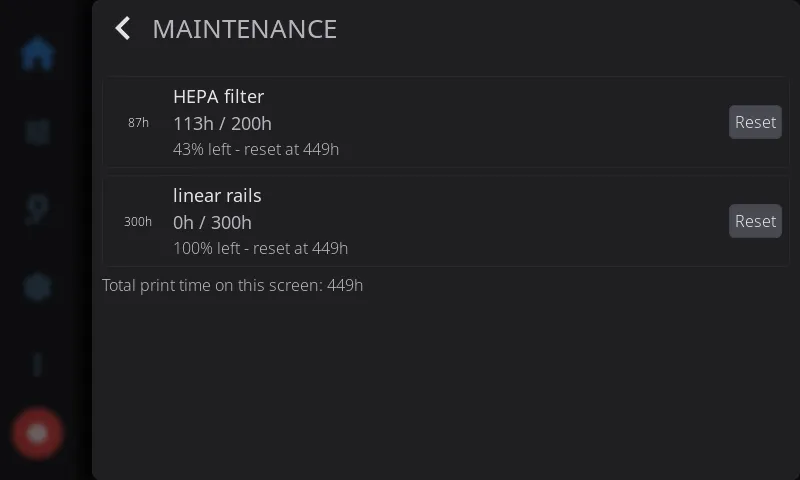
helix.ui.on("open", function() helix.ui.overlay("maintenance-meter__detail", { title = "Maintenance" })end)The overlay component is a stack of ui_card rows, one per meter. Each
card repeats the dial pattern at a fixed size - a 56x56 zone with the ring
canvas full-bleed and the hours-left label centered over it - beside a
static name and two bound labels, plus its own reset button. The reset
button passes an argument through user_data with a colon:
<lv_button name="maintenance-meter__btn_filter" height="content" style_pad_all="#space_xs"> <event_cb trigger="clicked" callback="plugin_event" user_data="maintenance-meter__reset:filter"/> <lv_label text="Reset HEPA" style_text_font="#font_small" style_text_color="#text"/></lv_button>helix.ui.on("reset", function(arg) for _, m in ipairs(METERS) do if m.key == arg then helix.ui.confirm("Reset " .. m.name, string.format("Start a new %dh interval?", m.interval), { confirm_text = "Reset", on_confirm = function() m.used = 0.0 m.reset_at = total_h m.notified = false save_state() redraw_all() helix.ui.toast(m.name .. " meter reset", "success") end, }) return end endend)The handler receives filter as its arg. A reset discards the hours
the user has accrued, so it asks first; on_confirm is the only place the
zero lands. The stamp it records is the screen’s total print hours, not a
wall date: the sandbox has no clock, and hours-of-printing is the clock
this plugin keeps anyway - the note line reads “reset at 449h”.
Step 7: real data
Section titled “Step 7: real data”Everything so far drew from canned numbers. The finished plugin replaces them with state that accrues, persists, and reacts to settings - and the substitutions are small because the subjects already carry the UI.
The store. One key holds the whole state, and the manifest’s
permissions grows to ["storage"] - the consent dialog then shows
exactly one line, because consent tracks what the plugin actually does.
An update that adds a permission parks the plugin at needs approval
until the user re-enables it; that is the system working, not a failure.
local function load_state() local saved = helix.storage.get("state") if type(saved) ~= "table" then return end total_h = tonumber(saved.total_h) or 0.0 local stored = saved.meters if type(stored) ~= "table" then return end for _, m in ipairs(METERS) do local s = stored[m.key] if type(s) == "table" then m.used = tonumber(s.used) or 0.0 m.reset_at = s.reset_at m.notified = s.notified == true end endendEvery field is validated on load with a fallback, because the store is user-editable bytes on disk: a hand-edited file, an older version’s shape, or a truncated write must degrade to defaults, never fault.
Accrual. The printer state arrives by watch, the clock by timer; a tick while printing adds one interval to every enabled meter and the screen total:
local printing = falsehelix.printer.watch("print_state", function(v)    printing = (v == "printing")end)
local function tick()    if not printing then return end    total_h = total_h + TICK_H    for _, m in ipairs(METERS) do        if enabled(m) then            m.used = m.used + TICK_H            if not m.notified and m.used >= m.interval then                m.notified = true                helix.ui.toast(m.name .. " due - " .. m.interval .. "h reached", "warning")            end        end    end    save_state()    redraw_all()end
helix.timer.every(TICK_MS, tick)
The notified latch is what makes the toast polite: crossing the
interval announces once, and only a reset re-arms it. The store write
rides the host’s debounce (about half a second, one write per burst), so
a tick-a-minute cadence is one small write per minute.
Settings drive behavior. An interval change re-derives everything the meter feeds, and an interval of 0 hides that meter everywhere - its list row and overlay card both carry a visibility binding to a per-meter subject:
for i, m in ipairs(METERS) do helix.settings.on_change(m.setting, function(v) m.interval = v or 0 redraw_all() end)end<bind_flag_if_eq subject="maintenance-meter__m2_on" flag="hidden" ref_value="0"/>With m_on[i]:set(enabled(m) and 1 or 0) inside redraw_all, the same
subject hides the row on the tile and the card in the overlay, and the
worst-meter ring re-picks among the meters that remain.
Where to go from here
Section titled “Where to go from here”The full API - permissions, limits, the sandbox, debugging - is
PLUGIN_DEVELOPMENT.md. The second example,
examples/plugins/led-effects, shows the gcode permission and live
Klipper subscriptions driving a toggle tile; and the temperature sparkline
in examples/plugins/temp-spark is the canvas deep-dive. Beyond that:
helix.http reaches companion services on the network, and
helix.moonraker.on_agent_event is the channel to a companion process on
the printer itself.