
UI Contributor Guide
A hands-on guide for contributing layout fixes and alternate screen layouts to HelixScreen. Whether you’re fixing clipping at 480x320 or building a portrait layout from scratch, this document covers everything you need. XML changes don’t require a rebuild – just relaunch the app.
For C++ internals, threading, and observer patterns, see the Deep Dive References at the bottom.
1. Quick Start
Section titled “1. Quick Start”Build once, then iterate on XML without rebuilding:
# Build the binarymake -j
# Run at any screen size (mock printer, debug logging)./build/bin/helix-screen --test -vv -s 800x480
The -s WIDTHxHEIGHT flag sets the window size. The --test flag runs against a mock printer so you don’t need real hardware. -vv gives you debug-level logs (helpful when things don’t look right).
Common sizes to test
Section titled “Common sizes to test”| Size | Category | Notes |
|---|---|---|
480x272 |
Micro | Smallest supported. Has its own ui_xml/micro/ overrides. |
480x320 |
Tiny | Where most bugs live. |
800x480 |
Standard / Medium | The “default” target. Most common screen. |
1024x600 |
Large | Waveshare 7” and similar. |
1280x720 |
XLarge | Larger desktop-class displays. |
1920x480 |
Ultrawide | Bar-style displays. Very wide, very short. |
480x800 |
Portrait | Rotated standard display. |
320x1480 |
Tall portrait | Waveshare 11.9”. Narrow axis 320 picks a small tier while 1480px of height goes unspent. |
Screenshots
Section titled “Screenshots”Take a screenshot of a specific panel at a specific size:
# Saves to /tmp/ui-screenshot-<name>.png./scripts/screenshot.sh helix-screen tiny-home home --test -s 480x320This requires ImageMagick. You can also press S while the app is running for a quick screenshot.
Force a layout
Section titled “Force a layout”./build/bin/helix-screen --test -vv --layout ultrawide -s 1920x480Navigation panels
Section titled “Navigation panels”home, print-select, controls, filament, settings, advanced
Key overlays
Section titled “Key overlays”motion, print-status, console, bed-mesh, input-shaper, macros, spoolman, ams
The golden rule
Section titled “The golden rule”XML changes don’t need a rebuild. Edit any .xml file in ui_xml/, relaunch the app, and see your changes immediately. This makes layout iteration very fast.
2. Screen Breakpoints
Section titled “2. Screen Breakpoints”There is one tier table and two ladders. Both feed the same seven tiers below; they differ only in which screen dimension they measure. Most tokens resolve from the cramped axis; height tokens resolve from the vertical axis.
The 7-tier system
Section titled “The 7-tier system”| Tier | Index | Suffix | Axis range | Target Devices | Fallback |
|---|---|---|---|---|---|
| MICRO | 0 | _micro |
<= 272px | 480x272 | Falls back to _tiny |
| TINY | 1 | _tiny |
273 – 390px | 480x320 | Falls back to _small |
| SMALL | 2 | _small |
391 – 460px | 480x400, 1920x440 | Required (core tier) |
| MEDIUM | 3 | _medium |
461 – 550px | 800x480 | Required (core tier) |
| LARGE | 4 | _large |
551 – 700px | 1024x600 | Required (core tier) |
| XLARGE | 5 | _xlarge |
701 – 1000px | 1280x720, 1024x768 | Falls back to _large |
| XXLARGE | 6 | _xxlarge |
> 1000px | 1440p, 4K | Falls back to _xlarge |
Every responsive value needs three core variants: _small, _medium, and _large. The _tiny, _micro, _xlarge, and _xxlarge tiers are optional – define them only when values actually need to differ from their fallback tier.
The index column matters for XML reactive bindings. The ui_breakpoint subject holds the current breakpoint as an integer, and you can use bind_flag_if_* or bind_style_if_* with these values. For example, ref_value="0" means Micro, ref_value="2" means Small.
The two ladders
Section titled “The two ladders”| Ladder | Measures | Selects for | Function |
|---|---|---|---|
| Cramped axis (default) | min(width, height) |
Fonts, spacing, widths, column counts, everything axis-neutral | responsive_dimension() |
| Vertical axis | height |
Height tokens — how much room there is to stack things | responsive_vertical_dimension() |
The cramped axis is the design constraint for anything that has to fit across: on a landscape panel it is usually the height, which is why this was long described as height-based; on a portrait panel it is the width. The vertical axis is the constraint for anything that stacks: a row height on a 1480px-tall panel has no reason to be sized as if the screen were 320px.
On landscape and square displays min(w, h) == h, so the two ladders pick the same tier and nothing differs. Only portrait geometry sees a difference.
Worked example — the 320x1480 Waveshare 11.9”:
| Axis value | Tier | #space_lg |
#button_height |
|
|---|---|---|---|---|
| Cramped | 320 | TINY | 8px | — |
| Vertical | 1480 | XXLARGE | — | 96px |
So padding stays tight (the panel really is only 320px wide) while buttons become credible touch targets instead of the 32px the cramped ladder alone would have given them.
Which subject holds which. The ui_breakpoint LVGL subject holds the cramped-axis tier, and only that — every bind_flag_if_eq / bind_style_if_* ref_value in ui_xml/ is written against it. There is no subject for the vertical tier; it exists only in C++, inside token resolution. If you need a structural portrait decision in XML, use ui_breakpoint plus the layout variant directories, not a second tier value.
Background: prestonbrown/helixscreen#1209.
Tiers pick the design; the UI scale sizes it physically
Section titled “Tiers pick the design; the UI scale sizes it physically”Tiers are chosen from pixels, which treats resolution as a stand-in for physical size. That works across printer panels and breaks on phone-class ones — a 1080x2400 handset at ~405 DPI lands on XXLARGE and draws a grid cell measuring 12mm rather than the ~30mm the tier means.
A separate scale factor fixes the physical size without touching tier selection. Two things follow for you as a contributor:
- Author px values exactly as you do now, against the 160 DPI reference. Every
<px>token is multiplied by the scale at registration — responsive and non-suffixed alike — so you never write a scaled number by hand. - A non-suffixed token is not exempt.
icon_badge_size,chip_height,swatch_sizeand friends are fixed-size boxes holding scaled text, so they scale too. The only exemption is a name ending_opacity, which holds an 0-255 alpha rather than a length.
Every shipping printer measures at or below the deadband (221 DPI at the top), so the scale is exactly 1.0 on all of them and this changes nothing you can see on real hardware. Reach for --dpi <n> to exercise it: ./build/bin/helix-screen --test -s 1080x2400 --dpi 405.
One consequence worth knowing when you size a widget: the scale shrinks the track count, because tracks get bigger while the panel does not. At 1080x2400 the home grid goes from 12x24 tracks to 6x14. A widget pinned to a fixed span (min == max in the registry) can therefore be handed far less absolute room than you assumed when you authored it, so prefer a scalable span where the content allows.
Mechanism, the DPI trust rules, and why the kernel is never believed: THEME_SYSTEM.md § The high-DPI UI scale factor.
How it works
Section titled “How it works”In globals.xml, you define the suffixed variants of each token:
<px name="space_lg_small" value="12"/><px name="space_lg_medium" value="16"/><px name="space_lg_large" value="20"/>At startup, theme_manager measures the axis that token follows, picks the matching suffix, and registers the base name (space_lg) pointing to the correct value. So when your XML says style_pad_all="#space_lg", it resolves to 12, 16, or 20 depending on the screen.
One function does the choosing for every token: theme_manager_resolve_px_tokens() (src/ui/theme_responsive.cpp). Both the startup registration and the resize path apply its output verbatim, so a token cannot get one tier at boot and another after a rotation.
CRITICAL: Never define the base name in globals.xml
Section titled “CRITICAL: Never define the base name in globals.xml”This is the most common mistake. Do NOT do this:
<!-- WRONG -- this will silently break responsive overrides --><px name="space_lg" value="16"/><px name="space_lg_small" value="12"/><px name="space_lg_medium" value="16"/><px name="space_lg_large" value="20"/>LVGL ignores duplicate variable registrations. If the base name space_lg is already registered (from the first line), the responsive override from theme_manager is silently discarded. Only define the suffixed variants.
CRITICAL: Responsive tokens only work at the top level of ui_xml/
Section titled “CRITICAL: Responsive tokens only work at the top level of ui_xml/”Token discovery does not recurse. theme_manager_find_xml_files() skips subdirectories, so only ui_xml/*.xml is ever scanned for suffixed tokens. A <px name="nav_width_small"> declared in ui_xml/components/, ui_xml/portrait/, ui_xml/micro/ or any other subdirectory is never registered, and every #nav_width that reads it silently resolves to nothing.
That is deliberate. Discovery is alphabetical last-wins, so if variant directories were scanned a portrait-only token would shadow its base token globally — including while the standard layout is active — rather than only when that variant is in use.
So declare responsive tokens in ui_xml/globals.xml (or another top-level token file such as ams_tokens.xml) and reference them with #token from the variant file. Non-responsive component-local <consts> are fine inside ui_xml/components/; they resolve through the component’s own scope and never reach discovery.
scripts/check_responsive_token_scope.py fails the build if a suffixed token is declared below the top level. Background: prestonbrown/helixscreen#1211.
Which font tiers actually exist
Section titled “Which font tiers actually exist”Not every font tier is present on every target, and not every present tier is registered at any given moment. Three separate layers decide whether #font_heading resolves to anything:
1. Build time. FONT_TIERS (set per platform in mk/cross.mk, defaulting to all in mk/fonts.mk) decides which faces are linked into the binary at all. CC1 gets micro tiny; AD5M and K1 get medium large; pi32 gets small medium; desktop gets all. From that, HELIX_MAX_FONT_TIER is derived, and theme_manager uses it to tell an expected-missing font (pruned by tier) from an unexpected-missing one (a build bug). A <string name="foo_xxlarge"> naming a face outside the target’s tiers is dead on that target – this is why the hero icon tokens are capped at mdi_icons_64.
2. Startup. AssetManager::register_fonts() registers the faces for the current breakpoint and everything below it, deliberately skipping larger tiers to avoid ~500-800KB of .rodata.
3. Runtime. AssetManager::register_fonts_for_tier() is the re-entrant form. A breakpoint that rises registers the additional tiers; a same-or-lower tier is a no-op. Fonts are never unregistered – live widgets hold pointers into that static .rodata, so the set only ever grows, bounded by HELIX_MAX_FONT_TIER. On a resize, theme_manager_refresh_layout_constants() runs the tier registration first, then re-points the font tokens, then re-runs the switch size presets. That order is load-bearing: re-pointing tokens at tiers whose faces were never registered would silently bounce them back down.
The limitation, stated plainly: updating a token does not restyle widgets that already exist. style_text_font is resolved to a concrete lv_font_t* at parse time and baked into the widget’s style, and the same is true of every px token – this is not new with the font work. So a runtime resize is picked up by anything built afterwards (overlays, modals, print-select cards, later-created switches) but not by the six root panels, which are built eagerly at startup and never rebuilt. Making those follow a resize needs NavigationManager::rebuild_active_views(), which is what hot reload uses. This only matters on desktop SDL and Android; on-device rotation is fixed at startup.
3. Design Tokens
Section titled “3. Design Tokens”Design tokens are the shared vocabulary for spacing, sizing, and typography. Use them everywhere instead of hardcoded values. They automatically adapt to the current breakpoint.
Spacing Tokens
Section titled “Spacing Tokens”| Token | Small | Medium | Large | Use Case |
|---|---|---|---|---|
#space_xxs |
2px | 3px | 4px | Keypad rows, compact icon gaps |
#space_xs |
4px | 5px | 6px | Button icon+text gaps, dense info |
#space_sm |
6px | 7px | 8px | Tight layouts, minor separations |
#space_md |
8px | 10px | 12px | Standard flex gaps, compact padding |
#space_lg |
12px | 16px | 20px | Container padding, major sections |
#space_xl |
16px | 20px | 24px | Emphasis cards, major separations |
#space_2xl |
24px | 32px | 40px | Toast/overlay offsets |
In XML:
<lv_obj style_pad_all="#space_lg" style_pad_gap="#space_md"/>In C++:
int padding = theme_manager_get_spacing("space_lg");Font Tokens
Section titled “Font Tokens”| Token | Component | Small | Medium | Large |
|---|---|---|---|---|
#font_heading |
<text_heading> |
noto_sans_20 | noto_sans_26 | noto_sans_28 |
#font_body |
<text_body> |
noto_sans_14 | noto_sans_18 | noto_sans_20 |
#font_small |
<text_small> |
noto_sans_light_12 | noto_sans_light_16 | noto_sans_light_18 |
#font_xs |
<text_xs> |
noto_sans_light_10 | noto_sans_light_12 | noto_sans_light_14 |
You almost never need to reference font tokens directly. Use the semantic <text_*> components instead (see Pre-Themed Widgets).
Component Tokens
Section titled “Component Tokens”| Token | Axis | Small | Medium | Large | Purpose |
|---|---|---|---|---|---|
#button_height |
vertical | 48px | 52px | 72px | Standard button height |
#button_height_sm |
vertical | 40px | 40px | 40px | Small buttons (back, icon-only) |
#button_height_lg |
vertical | 64px | 70px | 96px | Large buttons |
#header_height |
vertical | 48px | 56px | 60px | Panel header height |
#input_height |
vertical | 48px | 52px | 56px | Text input / dropdown height |
#temp_card_height |
vertical | 64px | 72px | 80px | Temperature card in print status |
#dialog_content_max |
vertical | 260px | 320px | 440px | Max height of a modal’s scrollable body |
#dialog_content_pinned_max |
vertical | 164px | 207px | 272px | Same, plus one pinned block below the scroll area (measured 85% cap − chrome, #1277) |
#dialog_content_recovery_max |
vertical | 218px | 276px | 352px | klipper_recovery_dialog’s message (measured 85% cap − chrome, #1277) |
#badge_size |
neutral | 16px | 18px | 20px | Status badge diameter |
#nav_width |
horizontal | 76px | 104px | 132px | Nav bar width — see note below |
#icon_size |
neutral | md | lg | lg | Responsive icon size string |
#spinner_lg |
neutral | 48px | 56px | 64px | Large spinner |
#spinner_md |
neutral | 24px | 28px | 32px | Standard spinner |
#spinner_sm |
neutral | 16px | 18px | 20px | Small spinner |
#spinner_xs |
neutral | 12px | 14px | 16px | Compact spinner |
The Axis column says which ladder the token resolves from (see The two ladders). vertical follows the screen height; horizontal and neutral both follow the cramped axis today — the distinction is documentation of intent, not yet two different code paths. All the #space_* tokens are neutral.
Two tokens in that list do not follow the ordinary rules:
#nav_widthis declared inui_xml/navigation_bar.xml, notglobals.xml, and resolves through its own ladder (helix::nav_width_suffix()) rather than the general one. The nav bar is a full-height vertical strip, so its width tracks the horizontal axis and has an extra ultrawide case.#border_radiusis not aglobals.xmltriplet at all and is deliberately absent from the table. The theme picks a size name (None / Minimal / Subtle / Soft / Rounded / Bold / Pill / Full) andBorderRadiusSizes(include/border_radius_sizes.h) resolves it per breakpoint in C++. Do not addborder_radius_*variants toglobals.xml. The fixed#border_radius_small/#border_radius_sm(both 4px) are separate — they exist for swatches and badges that always want 4px regardless of theme.
Adding New Tokens
Section titled “Adding New Tokens”First, classify the axis. Do this before writing the triplet — it decides which ladder the token resolves from:
| Axis | What it covers | Examples |
|---|---|---|
| vertical | Heights, top/bottom padding, vertical maxima — anything sized by how much room there is to stack | button_height, header_height, dialog_content_max |
| horizontal | Widths, left/right extents, column counts | nav_width, field_w_num |
| axis-neutral | Applies to both axes, or to neither (square things, opacity-like scalars) | space_*, icon_size, badge_size, the spinner sizes |
If in doubt, neutral. Neutral is the default and needs no code change at all.
How the choice is expressed in code:
- vertical — add the exact base name to
VERTICAL_AXIS_TOKENSinsrc/ui/theme_responsive.cpp. That array is the single classification list;theme_manager_token_uses_vertical_axis()reads it, andtheme_manager_resolve_px_tokens()is the only thing that calls it, so both registration sites stay in step automatically. Exact names, not a*_heightconvention —dialog_content_maxis a vertical maximum that does not end in_height. - horizontal and axis-neutral — nothing to do. Both resolve from the cramped axis, which is correct for widths (in portrait the cramped axis is the width) and is the deliberate compromise for neutrals.
space_* stays neutral on purpose. It feeds pad_top/pad_bottom and pad_left/pad_right alike, so splitting it means classifying every #space_* reference site across ui_xml/ — that reference count, not the declarations, is the cost driver.
Then follow the triplet pattern in globals.xml:
<!-- In globals.xml — define suffixed variants only --><px name="my_widget_height_small" value="48"/><px name="my_widget_height_medium" value="56"/><px name="my_widget_height_large" value="72"/>Then use the base name in your layout:
<!-- In your panel XML --><lv_obj height="#my_widget_height"/>From C++:
int h = theme_manager_get_spacing("my_widget_height");The limit: height="content" rows ignore height tokens
Section titled “The limit: height="content" rows ignore height tokens”A row declared height="content" is sized by its font and its padding. No height token reaches it — not #button_height, not any token you migrate to the vertical ladder.
That covers the whole setting_*_row family (setting_action_row.xml, setting_toggle_row.xml, and friends), and therefore most of Settings. Migrating a token and then finding that Settings did not move is the expected result, not a broken migration. Moving those rows means moving the font/padding tier, which is a different mechanism — see Which font tiers actually exist and prestonbrown/helixscreen#1210.
4. Color System
Section titled “4. Color System”HelixScreen uses 16 semantic color tokens. These work across light and dark modes automatically – you just reference the token name and the system resolves the right value.
Color Tokens
Section titled “Color Tokens”| Token | Purpose |
|---|---|
#screen_bg |
Main application background |
#overlay_bg |
Sidebar/panel backgrounds |
#card_bg |
Card surfaces |
#elevated_bg |
Elevated surfaces (dialogs, inputs) |
#border |
Borders and dividers |
#text |
Primary text |
#text_muted |
Secondary/dimmed text |
#text_subtle |
Hint/tertiary text |
#primary |
Primary accent color |
#secondary |
Secondary accent |
#tertiary |
Tertiary accent |
#info |
Info state (purple in Nord) |
#success |
Success state (green) |
#warning |
Warning state (amber) |
#danger |
Error/danger (red) |
#focus |
Focus ring outline |
Using colors in XML
Section titled “Using colors in XML”Just reference the token. The system handles light/dark mode for you:
<lv_obj style_bg_color="#card_bg"/><text_body style_text_color="#warning" text="High temperature"/>Theme JSON structure
Section titled “Theme JSON structure”Themes are defined in config/themes/. Here’s a snippet from nord.json:
{ "name": "Nord", "dark": { "screen_bg": "#2e3440", "card_bg": "#434c5e", "text": "#eceff4", "text_muted": "#d8dee9", "primary": "#88c0d0", "danger": "#bf616a", "success": "#a3be8c", "warning": "#ebcb8b" }, "light": { "screen_bg": "#eceff4", "card_bg": "#ffffff", "text": "#2e3440", "text_muted": "#3b4252", "primary": "#5e81ac", "danger": "#b23a48", "success": "#3fa47d", "warning": "#b08900" }, "border_radius": 12, "border_width": 1, "border_opacity": 40}C++ color access
Section titled “C++ color access”// Token lookup -- correctlv_color_t bg = theme_manager_get_color("card_bg");
// Hex string parsing -- correctlv_color_t red = theme_manager_parse_hex_color("#FF0000");
// WRONG -- parse_hex_color does NOT look up tokens// lv_color_t bad = theme_manager_parse_hex_color("#card_bg");Adding custom colors in globals.xml
Section titled “Adding custom colors in globals.xml”Define _light and _dark variants. The system auto-discovers them by suffix:
<color name="my_custom_light" value="#E0E0E0"/><color name="my_custom_dark" value="#3B4252"/>
<!-- Usage in any XML layout --><lv_obj style_bg_color="#my_custom"/>
5. Pre-Themed Widgets
Section titled “5. Pre-Themed Widgets”HelixScreen provides semantic widgets that already have the right colors, fonts, spacing, and responsive behavior baked in. Use these instead of raw LVGL widgets whenever possible – it saves you from manually specifying styles and keeps things consistent.
Typography
Section titled “Typography”| Widget | Font Token | Text Style | Use Case |
|---|---|---|---|
<text_heading> |
font_heading | Muted | Section titles |
<text_body> |
font_body | Primary | Body paragraphs |
<text_muted> |
font_body | Muted | Secondary metadata |
<text_small> |
font_small | Muted | Helper text |
<text_xs> |
font_xs | Muted | Compact info, badges |
<text_button> |
font_body | Primary | Button labels (centered) |
All of these support bind_text="subject_name" for dynamic content and text="static text" for fixed content. You can override the color with style_text_color="#token".
<text_heading text="Temperature"/><text_body bind_text="nozzle_temp_display"/><text_muted text="Last updated 5 min ago"/><text_small text="Firmware v1.2.3"/>They also accept the text as inline element content instead of a text= attribute – <text_muted>Last updated 5 min ago</text_muted> is equivalent to the text_muted line above, and is translatable by default. See “Inline Text Content” in LVGL9_XML_GUIDE.md for the full rules.
ui_card
Section titled “ui_card”A standard card surface with card_bg background, themed border, and border_radius already applied.
<ui_card width="100%" height="content"> <text_heading text="Temperature"/> <text_body bind_text="nozzle_temp"/></ui_card>Don’t re-specify style_radius, style_bg_color, or style_border_* – they’re already themed.
ui_button
Section titled “ui_button”Themed button with automatic contrast text color and responsive height.
Variants: primary, secondary, danger, success, warning, tertiary, ghost
<ui_button variant="primary" text="Save"/><ui_button variant="danger" text="Delete" icon="trash_can"/><ui_button variant="ghost" text="Cancel"/><ui_button icon="settings"/> <!-- Icon only, no text -->Material Design Icons with size and color variants.
Size variants: xs (16px), sm (24px), md (32px), lg (48px), xl (64px).
Color variants: text, muted, primary, secondary, tertiary, success, warning, danger, info, disabled.
<icon src="home" size="lg" variant="primary"/><icon src="settings" size="#icon_size" variant="muted"/> <!-- Responsive sizing -->An icon’s font face is applied as a shared style, so a bound style can retier it; this is
how a home tile scales its glyph with its size, through
<bind_tile_rung ladder="icon" subject="..."/> (include/ui_tile_rung.h). Each rung
names an #icon_font_* token rather than a literal face (a literal face a platform did
not link renders tofu). An
inline style_text_font attribute still outranks a bound style (see
LVGL9_XML_GUIDE.md § Conditional Style Bindings).
spinner
Section titled “spinner”Responsive loading spinner. Sizes adapt per breakpoint.
<spinner size="lg"/> <!-- 48/56/64px depending on breakpoint --><spinner size="md"/> <!-- 24/28/32px --><spinner size="sm"/> <!-- 16/18/20px -->dividers
Section titled “dividers”Simple horizontal and vertical dividers with themed colors.
<divider_horizontal/><divider_vertical/>ui_severity_card
Section titled “ui_severity_card”A card with a severity-colored left border. Great for status messages.
Severities: info, success, warning, error
<ui_severity_card severity="warning"> <text_body text="Nozzle temperature is high"/></ui_severity_card>ui_switch
Section titled “ui_switch”Responsive toggle switch. Sizes scale with the current breakpoint.
<ui_switch size="medium" checked="true"/>Sizes: tiny, small, medium, large
ui_markdown
Section titled “ui_markdown”Theme-aware markdown viewer for rich text content.
<ui_markdown bind_text="release_notes" width="100%"/>Widget Defaults – DON’T re-specify
Section titled “Widget Defaults – DON’T re-specify”These widgets come pre-themed. Adding redundant style attributes clutters the XML and can conflict with theming:
| Widget | Already Themed (skip these) |
|---|---|
ui_card |
style_radius, style_bg_color, style_border_* |
ui_button |
style_radius, style_bg_color, height, text color |
text_* |
style_text_font, style_text_color |
icon |
Font selection |
divider_* |
style_bg_color, width/height |
ui_markdown |
All styling |
Shared styles (ui_xml/styles.xml)
Section titled “Shared styles (ui_xml/styles.xml)”A <styles> block is file-local. When two files want the same style, it lives in
ui_xml/styles.xml instead – the shared style library. Any XML file borrows from it
by dotted name, where the prefix is that file’s basename:
<!-- The definition, ui_xml/styles.xml --><style name="press_wash" bg_color="#primary" bg_opa="30%" radius="#border_radius"/>
<!-- Any other file, borrowing it --><style name="styles.press_wash" selector="pressed"/>
press_wash is the pressed-state feedback for clickable rows (a primary-color wash
while the finger is down); it backs the filament catalog rows
(components/filament_catalog_row.xml, components/filament_catalog_add_row.xml) and
the external spool row in filament_panel.xml. metadata_strip is the other one –
the translucent strip at the bottom of a g-code preview card, shared by
components/print_status_preview_card.xml and print_file_detail.xml, which keep
their own (genuinely different) placement inline.
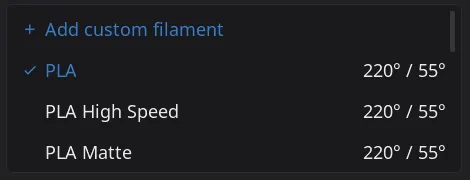
Check styles.xml before writing a local <style> that is really a look another
screen already has – and when a second file copies one of your local styles, promote
it into the library rather than forking it.
A borrowed style is a raw pointer into another file’s scope. lv_obj_add_style()
stores &style, and that storage belongs to styles.xml’s component scope, not to
yours. Nothing instantiates styles.xml, so its instance count is permanently zero,
and the engine used to free the whole scope the moment the file was re-registered –
which every hot-reload save does – leaving every borrower holding a dangling style.
It detonated far away, in the next lv_obj_report_style_change(NULL) at theme init.
Fixed in helix-xml 3177f3f7: a lookup that crosses a scope boundary marks the
lender, and a marked scope is held instead of freed. The mark is one-way, so a file
that lends styles is held until lv_xml_component_deinit() – one retained scope per
hot-reload save of styles.xml, which is why the library is worth keeping small.
Registration order matters. styles.xml is the one component registered eagerly, from
register_xml_components() (src/xml_registration.cpp), which runs after
theme_manager_init() has injected the theme constants. Style #token values resolve
at registration time, so a theme-token style placed in globals.xml (parsed before
theme init) registers empty – theme-aware styles must live in styles.xml.
6. XML Layout Essentials
Section titled “6. XML Layout Essentials”This section covers the patterns you’ll use most in layout work. For a complete reference, see LVGL9_XML_GUIDE.md and LVGL9_XML_ATTRIBUTES_REFERENCE.md.
Flex Layout
Section titled “Flex Layout”Almost everything uses flexbox. The three flows you’ll see:
<lv_obj flex_flow="row"/> <!-- Horizontal: children side by side --><lv_obj flex_flow="column"/> <!-- Vertical: children stacked --><lv_obj flex_flow="row_wrap"/> <!-- Horizontal, wraps to new rows when full -->flex_grow
Section titled “flex_grow”Children with flex_grow expand to fill remaining space in their parent. The parent must have an explicit size (not content).
<lv_obj flex_flow="row" width="100%" height="100%"> <lv_obj flex_grow="3" height="100%"><!-- Left column, 30% --></lv_obj> <lv_obj flex_grow="7" height="100%"><!-- Right column, 70% --></lv_obj></lv_obj>Centering (THE GOTCHA)
Section titled “Centering (THE GOTCHA)”Unlike CSS flexbox, LVGL needs three properties to fully center items – not two. This trips up almost everyone:
<!-- Fully centered column --><lv_obj flex_flow="column" style_flex_main_place="center" style_flex_cross_place="center" style_flex_track_place="center"> <text_body text="I am actually centered"/></lv_obj>Without style_flex_track_place, children with explicit widths stay left-aligned even though the other two properties suggest centering. If something isn’t centering the way you expect, add style_flex_track_place="center" first.
Gaps and Padding
Section titled “Gaps and Padding”<!-- Gap between children --><lv_obj flex_flow="row" style_pad_gap="#space_md"> <ui_button text="A"/> <ui_button text="B"/></lv_obj>
<!-- Internal padding around all edges --><lv_obj style_pad_all="#space_lg"> <text_body text="Content with breathing room"/></lv_obj>Conditional Visibility
Section titled “Conditional Visibility”Show or hide elements based on subject values:
<!-- Hide this widget when status == 0 --><lv_obj>  <bind_flag_if_eq subject="status" flag="hidden" ref_value="0"/></lv_obj>
<!-- Show only when connected (hide when not equal to 1) --><lv_obj>  <bind_flag_if_not_eq subject="connected" flag="hidden" ref_value="1"/></lv_obj>
Available operators: bind_flag_if_eq, bind_flag_if_not_eq, bind_flag_if_gt, bind_flag_if_ge, bind_flag_if_lt, bind_flag_if_le.
Event Callbacks
Section titled “Event Callbacks”<lv_button name="save_btn"> <event_cb trigger="clicked" callback="on_save_clicked"/> <text_body text="Save"/></lv_button>Callbacks are registered in C++. For layout-only work, just keep existing <event_cb> elements in place – don’t remove them or rename them.
Visual Debugging
Section titled “Visual Debugging”When you can’t tell why something is overflowing or misaligned, add a temporary background color to see the actual widget bounds:
<lv_obj style_bg_color="#ff0000" style_bg_opa="100%"> <!-- Now you can see exactly where this container starts and ends --></lv_obj>Remove the debug styles before submitting your PR.
lv_obj Defaults in HelixScreen
Section titled “lv_obj Defaults in HelixScreen”Our theme makes lv_obj a pure layout container by default: transparent background, no border, no padding, sized to content. You don’t need to clear any of these – just use lv_obj as a flexbox wrapper and it stays invisible.
Scrolling is the exception. Our theme does not touch LV_OBJ_FLAG_SCROLLABLE, and LVGL’s own default for it is ON. A wrapper you think of as inert can still absorb drags and pick up a page-scroll gutter. Add scrollable="false" on any container that is not a real scroll region.
Common Gotchas
Section titled “Common Gotchas”| Wrong | Right | Why |
|---|---|---|
width="LV_SIZE_CONTENT" |
width="content" |
XML uses string names, not C constants |
flex_align="center center" |
style_flex_main_place="center" |
flex_align is silently ignored |
style_img_recolor |
style_image_recolor |
Full words, not abbreviations |
<lv_dropdown options="A\nB\nC"/> |
options="A B C" |
Use XML entity for newlines |
Hardcoded style_pad_all="12" |
style_pad_all="#space_lg" |
Always use design tokens |
Hardcoded style_text_font="..." |
<text_body> |
Use semantic typography components |
style_bg_color="#2e3440" |
style_bg_color="#screen_bg" |
Use color tokens, not hex values |
width="#overlay_width_destination" |
(no width attribute) | Overlay width is resolved at push time |
<lv_obj> layout wrapper with no scrollable attribute |
<lv_obj scrollable="false"> |
LVGL’s scrollable default is ON and our theme does not override it, so the wrapper absorbs drags and can get a page-scroll gutter |
height="100%" inside a height="content" parent |
height="content" |
The two depend on each other and both collapse to zero |
flex_grow on children of a *_wrap container |
percentage widths + style_flex_main_place="space_between" |
Grow items contribute zero base size, so nothing ever wraps |
<style flex_flow="row"/> |
<style layout="flex" flex_flow="row"/> |
flex_flow in a style is inert without layout="flex" |
The last three are explained in full, with the ctl geom signatures that identify
them, in LVGL9_XML_GUIDE.md under “Flex Layout”.
Overlay width — don’t set it
Section titled “Overlay width — don’t set it”An overlay is one of two things, and the difference is visible against the nav dock:
| width | looks like | |
|---|---|---|
| Destination | screen - nav |
flush against the dock; a place you park |
| Transient layer | screen - nav - space_lg |
a gap showing the dimmed backdrop; you’ll go back |
Settings is a destination, so everything you reach inside Settings is flush — Settings › Connection › Network is a sub-screen of Settings, not a layer over it. AMS and Print Status are destinations too: people live on those screens. Console, Bed Mesh, Motion and the calibration panels are transient layers — tools you open and return from.
Which one you get is not yours to choose in XML. It depends on how the user
reached the overlay, and the same overlay can be reached both ways: Fan Control
opened from Controls is a transient layer, and opened from Settings › Devices › Fans it’s
a drill-down. NavigationManager::push_overlay() resolves it against the live
navigation stack on every push, so just leave width off:
<view name="my_overlay" extends="overlay_panel" title="My Overlay" title_tag="My Overlay">Two things you can declare, both in C++:
- A long-dwell screen that should be a destination from every entry point:
override
IPanelLifecycle::is_destination()to returntrue. Seeinclude/ui_panel_ams.h. - A deliberately odd width that is neither class —
widget_catalog_overlayiswidth="70%"so the home grid stays visible behind it. Set the width in XML and callNavigationManager::set_overlay_width_unmanaged()once after creating the widget, or push will overwrite it.
scripts/check_overlay_width.py fails the build if XML names a width class.
Background: include/overlay_class.h and prestonbrown/helixscreen#1178.
7. Layout Overrides
Section titled “7. Layout Overrides”HelixScreen supports layout-specific XML overrides so you can rearrange panels for different screen shapes without touching the standard layouts.
Layout types
Section titled “Layout types”| Layout | Detection | Example Screens |
|---|---|---|
standard |
Normal landscape (4:3 to 16:9) | 800x480, 1024x600, 1280x720 |
ultrawide |
Aspect ratio > 2.5:1 | 1920x480, 1920x400 |
portrait |
Aspect ratio < 0.8:1 | 480x800, 600x1024 |
micro |
Min dimension <= 272, landscape | 480x272 |
micro_portrait |
Min dimension <= 272, portrait | 272x480 |
tiny |
Max dimension <= 480, landscape | 480x320, 320x240 |
tiny_portrait |
Max dimension <= 480, portrait | 320x480, 240x320 |
Detection lives in LayoutManager::detect() (src/layout_manager.cpp). Portrait
sub-classes (micro_portrait, tiny_portrait) fall back through the shared
portrait/ layer before the standard layout – see variant_chain().
Force a layout with --layout ultrawide on the command line, or set display.layout in settings.json.
Directory structure
Section titled “Directory structure”ui_xml/ globals.xml <-- Shared by ALL layouts (never override this) home_panel.xml <-- Standard home panel controls_panel.xml <-- Standard controls panel ... <-- ~230 top-level XML files (components/ holds ~100 more) micro/ <-- Micro (480x272) overrides (4 files) controls_panel.xml header_bar.xml ... portrait/ <-- Portrait overrides (2 files) print_status_panel.xml print_tune_panel.xml micro_portrait/ <-- Micro-portrait overrides (dir present, empty) ultrawide/ <-- Does NOT exist yet (no overrides created) tiny/, tiny_portrait/ <-- Do NOT exist yetHow overrides work
Section titled “How overrides work”If ui_xml/<layout>/<panel>.xml exists, it’s used instead of ui_xml/<panel>.xml. Otherwise the standard version is loaded. You only need to override the panels that actually need different layouts – everything else falls through automatically.
Creating an override
Section titled “Creating an override”-
Copy the standard layout as a starting point:
Terminal window cp ui_xml/controls_panel.xml ui_xml/ultrawide/controls_panel.xml -
Edit the copy for the target screen shape.
-
Test it:
Terminal window ./build/bin/helix-screen --test -vv --layout ultrawide -s 1920x480 -
No rebuild needed. XML loads at runtime.
The rules you must follow
Section titled “The rules you must follow”When creating a layout override, you’re rearranging the same content for a different screen shape. The C++ code still expects certain widgets, bindings, and callbacks to exist.
-
Keep all named widgets that C++ looks up via
lv_obj_find_by_name(). Search the panel’s.cppfile to find required names:Terminal window grep lv_obj_find_by_name src/ui/panels/controls_panel.cpp -
Keep all subject bindings (
bind_text,bind_value,bind_flag_if_*, etc.). These connect the UI to live data. -
Keep all event callbacks (
<event_cb>elements). These wire up button presses and interactions. -
Use design tokens for all colors, spacing, and fonts. No hardcoded values.
-
Don’t change existing values in globals.xml. They’re shared across all layouts. Adding a new suffixed token there is correct, and is the only place a variant-specific token can live – token discovery never recurses into
ui_xml/subdirectories, so a<px name="foo_small">declared next to your override is silently never registered (see section 2).
You’re free to rearrange the visual hierarchy, change flex directions, adjust sizes, hide optional decorative elements, or add new layout containers. Just preserve the functional widgets.
Design guidelines by layout type
Section titled “Design guidelines by layout type”Ultrawide (1920x480): Tons of horizontal space, very little vertical. Favor flex_flow="row" to spread content across columns. Aim for everything visible at once with no scrolling. Think “dashboard with columns” – put related info side by side instead of stacking it.
Portrait (480x800): Lots of vertical space, narrow width. Content stacks naturally with flex_flow="column". The navbar and app shell already move to the bottom automatically (ui_is_portrait) — no override needed.
Tiny (480x320): Very limited in both directions. Reduce information density, use bigger touch targets (48px minimum), show fewer labels. Hide optional elements with conditional visibility or just remove decorative content.
One tree, restyled for portrait
Section titled “One tree, restyled for portrait”A panel usually needs no portrait override. The print file detail view is the pattern: one widget tree, with complementary bind_style pairs keyed on ui_is_portrait carrying every restyle that is a style property (row vs column, which side grows, the button tier). The inline attribute for a restyled property must come off the widget, because an inline attribute beats a bound style and freezes one orientation. What styles cannot express (a size measured from runtime pixels) is measured in C++: src/ui/ui_print_select_detail_view.cpp#fit_portrait_preview reads the options column’s real content height and sets the preview card’s height from include/print_detail_layout.h#decide_detail_portrait_preview. See ui_xml/print_file_detail.xml for the whole shape.
Priority panels to override
Section titled “Priority panels to override”Start with the panels that matter most:
| Priority | Panel | Why |
|---|---|---|
| High | home_panel.xml |
First thing users see |
| Medium | controls_panel.xml |
Multiple cards that benefit from rearranging |
| Medium | print_status_panel.xml |
Important during active prints |
| Medium | settings_panel.xml |
Grouped single-column list of 12 rows; sub-panels may benefit from multi-column |
| Low | Overlays | Usually modal dialogs that adapt reasonably well |
app_layout.xml and navigation_bar.xml are not in this table: both already adapt their
chrome and nav position to ui_is_portrait in place, so a new layout family only needs to
override them if its chrome is a genuinely different design, not just a different axis.
Responsive Setting Rows (no micro/ overrides)
Section titled “Responsive Setting Rows (no micro/ overrides)”The setting row components (setting_toggle_row, setting_slider_row, setting_dropdown_row, setting_action_row, setting_section_header, setting_value_field) handle the Micro breakpoint responsively within a single XML file. There are no micro/ directory overrides for settings – do not create them.
The pattern used by all setting rows:
- Two
bind_style_if_*for padding – compact padding on Micro (breakpoint 0), standard padding on Tiny and above (breakpoint >= 1):
<styles>  <style name="pad_standard" pad_left="#space_lg" pad_right="#space_lg"         pad_top="#space_lg" pad_bottom="#space_lg" pad_gap="#space_sm"/>  <style name="pad_micro" pad_left="#space_md" pad_right="#space_md"         pad_top="#space_lg" pad_bottom="#space_lg" pad_gap="#space_sm"/></styles>
<view ...> <bind_style_if_eq name="pad_micro" subject="ui_breakpoint" ref_value="0"/> <bind_style_if_ge name="pad_standard" subject="ui_breakpoint" ref_value="1"/>- Description text hidden on small screens – the description label is hidden on Micro and Tiny (breakpoint < 2) via
bind_flag_if_lt:
<text_small name="description" text="$description"> <bind_flag_if_lt subject="ui_breakpoint" flag="hidden" ref_value="2"/></text_small>- Info icon for small screens – an info icon appears on Micro/Tiny when a description prop is non-empty. Uses the parse-time
hidden_if_emptyattribute so it never renders when there is no description, andbind_flag_if_gtto hide it on Medium and above:
<lv_obj name="info_btn" clickable="true" hidden_if_empty="$description"> <bind_flag_if_gt subject="ui_breakpoint" flag="hidden" ref_value="1"/> <icon src="info_outline" size="sm" variant="muted"/> <event_cb trigger="clicked" callback="on_setting_info_clicked"/></lv_obj>Tapping the info icon toggles the description label’s visibility inline.
This same responsive pattern should be used for any new setting row components. The convention is: make the component responsive internally rather than creating a micro/ override file.
Exact entry on a wide-range slider (setting_value_field)
Section titled “Exact entry on a wide-range slider (setting_value_field)”A slider cannot land on an exact value once its range is wide: Max Acceleration
spans 500-50000 across a few hundred pixels, which is roughly 165 mm/s2 per
pixel. setting_value_field replaces a row’s display-only value label with a
field that reads as editable and opens the numeric keypad on tap.
<setting_value_field name="max_accel_field" value_subject="max_accel_display" callback="on_limit_field_clicked" user_data="1"/>It styles itself like a text input rather than being one – a real
lv_textarea would take focus and raise the alphanumeric on-screen keyboard.
user_data arrives at the callback as a const char* index into the panel’s
own field table (FIELD_SPECS in ui_settings_machine_limits.cpp is the
reference shape).
Two things to get right when wiring one up:
- Read the keypad’s bounds from the row’s own
lv_slider(lv_slider_get_min_value()/..._max_value()), not from a second copy in C++. The XML stays the single source of truth and the two cannot drift. - Guard the parent’s
on_activate().ui_keypad_show()pushes an overlay, so closing it re-activates the parent; a panel that refreshes there will overwrite the value the user just typed. BothMachineLimitsOverlayandRetractionSettingsOverlaycarry areturning_from_keypad_flag set before the push and consumed inon_activate().OverlayBasehas no “returning from a child” concept – each panel needs its own guard.
A slider that must express fractional values holds scaled integers and converts
through helix::ui::SliderScale (include/ui_slider_scale.h): square corner
velocity stores tenths so it can reach 5.5, retraction distances store
hundredths. Match the display precision to the slider’s resolution, or a typed
0.85 renders as “0.8” and reads as though it was ignored.
Settings structure
Section titled “Settings structure”The Settings root (ui_xml/settings_panel.xml) is one grouped list: SCREEN (Display, Appearance, Touch & Input, Sound), PRINTER (Printing, Devices, Safety & Alerts, Connection) and HELIXSCREEN (Language & Time, System, Updates, Help & About). Each page owns one concern, so a new setting goes on the page whose concern it is, never into a catch-all. A root row is a label plus an optional live status line: its bind_description subject is filled by SettingsPanel::refresh_status_lines() (src/ui/ui_panel_settings.cpp#refresh_status_lines) from pure formatters in src/ui/settings_root_status.cpp, and refreshed each time the root activates rather than observed. A row with nothing worth summarizing has no description. The user guide mirrors the tree, one page per file under docs/user/guide/settings/.
8. What Needs Work
Section titled “8. What Needs Work”This is where to start if you want to contribute. Issues are organized by severity and area. All observations below are primarily at 480x320 unless noted otherwise.
Global Issues (affect multiple panels)
Section titled “Global Issues (affect multiple panels)”These cut across many screens and are high-value fixes:
- Numeric keypad overlay doesn’t fit vertically at 480x320 – bottom rows are cut off. This affects every panel that uses the keypad for numeric input.
- Many modals don’t respect viewport height – content clips at top and bottom on small screens.
- Navbar icons are clipped at 480x320, outlines overlap, and click targets may overlap each other.
- Temperature labels collide with values on the controls panel.
- Settings dropdown menus are hardcoded too wide for small screens.
Broken / Needs Major Rework (at 480x320)
Section titled “Broken / Needs Major Rework (at 480x320)”These are the most impactful fixes:
- Print Select list view – The most broken screen. Padding is wrong, row sizing is off, horizontal overflow everywhere.
- Print Status overlay – Action buttons, temperature cards, and metadata are all fighting for space. Nothing fits.
Needs Moderate Fixes (at 480x320)
Section titled “Needs Moderate Fixes (at 480x320)”Usable but clearly broken in places:
- Controls panel – Position card labels overlap the header, Z-offset value wraps, cooling section overflows, quick actions are clipped.
- Print Select card view – Metadata area is too tall, squeezing the file thumbnails.
- PID Calibration – Chips are clipped, text doesn’t wrap, slider padding is off, values wrap awkwardly.
Minor / Cosmetic
Section titled “Minor / Cosmetic”Things that work but could look better:
- Home panel – Tip text is borderline too large, status icon temperature padding is slightly off.
- Print File Detail – Pre-print options are cramped when toggles are present.
- Z-Offset Calibration – Slightly too tall for the viewport, could use scroll.
- Spoolman – Too much padding, wasted space.
- Print History list – Filter fields are too wide.
Looking Good Already (at 480x320)
Section titled “Looking Good Already (at 480x320)”These panels work well and can serve as reference for how to do things right:
- Motion overlay
- Filament panel (landscape and portrait;
ui_xml/filament_panel.xml#filament_panelbranches in place onui_is_portrait) - Advanced settings
- Settings panel (except dropdown widths)
- Theme view and edit
- Print History dashboard
Ultrawide Status
Section titled “Ultrawide Status”- Not started –
ui_xml/ultrawide/does not exist yet, so ultrawide screens currently fall through to the standard layout. - Wide open for contributions. Force it with
--layout ultrawide -s 1920x480.
Portrait / Micro Status
Section titled “Portrait / Micro Status”ui_xml/portrait/exists with two overrides (print_status_panel.xml,print_tune_panel.xml); the app shell and navigation bar are single files that adapt viaui_is_portraitinstead.ui_xml/micro/exists with four overrides (controls_panel.xml,header_bar.xml,theme_editor_overlay.xml,theme_preview_overlay.xml).ui_xml/micro_portrait/exists as a directory but has no overrides yet.tiny/,tiny_portrait/do not exist yet. Wide open for contributions.
9. Testing Your Changes
Section titled “9. Testing Your Changes”Screenshot commands for each breakpoint
Section titled “Screenshot commands for each breakpoint”# Micro (480x272)./scripts/screenshot.sh helix-screen micro-home home --test -s 480x272
# Tiny (480x320)./scripts/screenshot.sh helix-screen tiny-home home --test -s 480x320
# Standard/Medium (800x480)./scripts/screenshot.sh helix-screen medium-home home --test -s 800x480
# Large (1024x600)./scripts/screenshot.sh helix-screen large-home home --test -s 1024x600
# XLarge (1280x720)./scripts/screenshot.sh helix-screen xlarge-home home --test -s 1280x720
# Ultrawide (1920x480)./scripts/screenshot.sh helix-screen ultrawide-home home --test --layout ultrawide -s 1920x480
# Portrait (480x800)./scripts/screenshot.sh helix-screen portrait-home home --test --layout portrait -s 480x800
# Tall portrait (320x1480) -- the narrow-axis case./scripts/screenshot.sh helix-screen tall-portrait-home home --test --layout portrait -s 320x1480Screenshots save to /tmp/ui-screenshot-<name>.png.
Set HELIX_SCREENSHOT_DISPLAY=0 to prevent the app from opening a visible display window (useful for CI or batch screenshots).
Replace home with any panel or overlay name: controls, filament, settings, print-status, motion, etc.
Widget destruction safety
Section titled “Widget destruction safety”Two rules, both required — they address different crashes.
Rule 1 — never destroy a container from inside an event callback on its own child (issue #80). The child widget is still on the call stack; deleting its parent synchronously causes use-after-free. Defer the rebuild to the next tick.
Rule 2 — never call synchronous widget deletion inside a deferred callback (issue #776). lv_obj_clean(), lv_obj_del(), and helix::ui::safe_delete() all run synchronously. Multiple sync deletions in the same UpdateQueue::process_pending() batch corrupt LVGL’s event linked list → SIGSEGV in lv_event_mark_deleted. ui_queue_update, lifetime_.defer, tok.defer, and observer callbacks all share that batch — the deferral alone is not enough.
Use the safe replacement — it reparents children to lv_layer_top() and schedules them for lv_obj_delete_async(), which runs outside our UpdateQueue batch:
// ❌ BAD (#80): swatch click handler destroys its own parent synchronouslyvoid handle_color_selected(...) {    lv_obj_clean(container);    rebuild(container);}
// ❌ STILL BAD (#776): deferred, but lv_obj_clean is still a sync batch deletionvoid handle_color_selected(...) {    ui_queue_update([this]() {        lv_obj_clean(container);      // Corrupts event list under load        rebuild(container);    });}
// ✅ CORRECT: defer the rebuild AND use safe_clean_childrenvoid handle_color_selected(...) {    lifetime_.defer([this]() {        helix::ui::safe_clean_children(container);        rebuild(container);    });}
Replacements table:
| ❌ Banned in deferred callbacks | ✅ Use instead |
|---|---|
safe_delete(ptr) |
safe_delete_deferred(ptr) |
lv_obj_delete(obj) / lv_obj_del(obj) |
lv_obj_delete_async(obj) |
lv_obj_clean(container) |
helix::ui::safe_clean_children(container) |
See include/ui_utils.h and THREADING.md §3 for the full rationale.
Verification checklist
Section titled “Verification checklist”Before submitting, verify these for every change:
- No text clipping or overflow at the target size
- Touch targets are large enough (48px minimum recommended)
- Design tokens used throughout (no hardcoded pixel values, colors, or fonts)
- All subject bindings preserved from the standard layout
- All event callbacks preserved
- All named widgets still present (check with
grep lv_obj_find_by_namein the C++ source) - Standard layout still works at 800x480 (no regression)
Submitting your work
Section titled “Submitting your work”PRs are welcome. To make review smooth:
- Include before/after screenshots at the target resolution.
- Test at the target size and at standard (800x480) to verify no regression.
- If you created a layout override, mention which named widgets you found in the C++ source so reviewers can verify coverage.
- Keep changes focused. One panel per PR is easier to review than five.
10. Deep Dive References
Section titled “10. Deep Dive References”For the full details on any of these topics, see the dedicated docs:
| Document | What It Covers |
|---|---|
| LVGL9_XML_GUIDE.md | Full XML system guide – subjects, events, component creation, implementation patterns |
| LVGL9_XML_ATTRIBUTES_REFERENCE.md | Quick-lookup cheatsheet for every XML attribute |
| DEVELOPER_QUICK_REFERENCE.md | C++ patterns – observer factory, threading, class structures |
| ARCHITECTURE.md | System architecture and high-level design decisions |
For most layout and styling work, you shouldn’t need these. But if you’re adding new components, wiring up new subjects, or debugging why a binding isn’t working, that’s where the answers live.