
Label Printing
Print spool labels directly from HelixScreen to a compatible thermal label printer. Labels include spool name, material type, color swatch, temperatures, and a QR code linking back to Spoolman.
Two ways to print labels: Most of this guide covers thermal label printers — dedicated devices (Brother, Phomemo, Niimbot, MakeID) that print one label at a time onto a roll or tape. If you don’t own one, HelixScreen can also print onto Avery-style sheet labels using a normal networked office printer (inkjet or laser). See Office-Printer (Sheet) Labels below.
Supported Printers
Section titled “Supported Printers”HelixScreen supports five families of label printers:
| Brand | Connection | Models |
|---|---|---|
| Brother QL | Network (TCP) or Bluetooth | QL-820NWB, QL-810W, QL-800, TD-, RJ- |
| Brother PT | Bluetooth | PT-P300BT, PT-P710BT, PT-P910BT, and other P-Touch models with Bluetooth |
| Phomemo | USB or Bluetooth | M110, M120, M02, Q199, and other M*/Q* series |
| Niimbot | Bluetooth only | B21, D11, D110 |
| MakeID | Bluetooth only | E1 (advertises as “YichipFPGA-XXXX”), L1, M1 — 9/12/16mm continuous tape |
Note: Bluetooth label printing requires a Bluetooth adapter on your HelixScreen device (Raspberry Pi 4/5 have built-in Bluetooth). Devices without Bluetooth hardware will only see Network and USB options. If Bluetooth is disabled for UART, see the Bluetooth Setup Guide.
Setting Up Your Label Printer
Section titled “Setting Up Your Label Printer”Step 1: Open Label Printer Settings
Section titled “Step 1: Open Label Printer Settings”- Go to Settings → Hardware & Devices → Spoolman → Label Printer
- Tap to open the Label Printer settings overlay
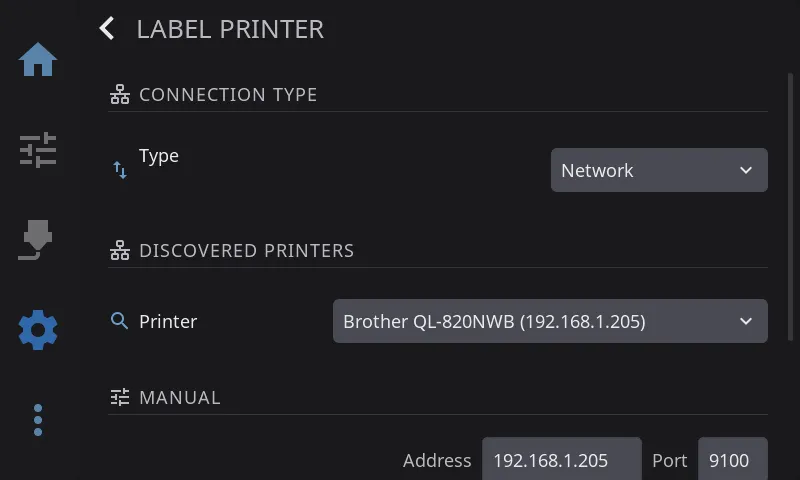
Step 2: Select Connection Type
Section titled “Step 2: Select Connection Type”Choose your printer’s connection method:
| Type | When to Use |
|---|---|
| Network | Brother QL printers connected via Ethernet or WiFi |
| USB | Phomemo printers connected via USB cable |
| Bluetooth | Any supported printer paired via Bluetooth |
Bluetooth only appears when HelixScreen detects Bluetooth hardware on your device.
Step 3: Configure Your Printer
Section titled “Step 3: Configure Your Printer”For Network printers:
- Enter the printer’s IP address
- Port defaults to 9100 (standard for Brother QL)
For USB printers:
- Connect the printer via USB
- HelixScreen auto-detects the printer
For Bluetooth printers:
- Turn on your label printer and make sure it’s in pairing mode
- Tap Scan to discover nearby printers
- Select your printer from the dropdown
- If the printer isn’t yet paired, HelixScreen will prompt to pair it (most label printers use “Just Works” pairing — no PIN required)
Step 4: Choose Label Size
Section titled “Step 4: Choose Label Size”Select the label size that matches your loaded label roll:
Brother QL sizes: 29mm, 62mm, 29x90mm, and more (300 DPI)
Brother PT sizes: 3.5mm, 6mm, 9mm, 12mm, 18mm, 24mm continuous tape (180 DPI). Tape width is auto-detected — HelixScreen reads the installed tape cassette and adjusts the label layout automatically. Narrow tapes (≤9mm) use a compact minimal layout.
Phomemo sizes: 40x30mm, 50x30mm, and more (203 DPI)
Niimbot B21 sizes: 50x30mm, 40x30mm, 50x50mm, 40x20mm, 50x80mm (203 DPI)
Niimbot D11/D110 sizes: 12x40mm, 12x22mm, 12x30mm, 12x50mm, 12x60mm, 12x70mm (203 DPI)
MakeID E1 sizes: 9x30mm, 12x30mm, 12x40mm, 16x30mm, 16x40mm (203 DPI)
Tip: The size list updates automatically based on the detected printer model. A Niimbot D11 shows different sizes than a B21.
Step 5: Choose Label Preset
Section titled “Step 5: Choose Label Preset”| Preset | Description |
|---|---|
| Standard | Full label with spool name, material, color, temps, and QR code |
| Compact | Condensed layout for smaller labels |
| QR Only | A QR code only — no material or color text |
Printing a Label
Section titled “Printing a Label”- Navigate to the Spoolman panel (via Filament tab)
- Find the spool you want to label
- Tap the Print Label button
- The label prints automatically using your configured printer
A toast notification confirms success or shows an error message.
Office-Printer (Sheet) Labels
Section titled “Office-Printer (Sheet) Labels”No thermal label printer? If you have an ordinary networked office printer (inkjet or laser), HelixScreen can print spool labels onto Avery-style sheet labels instead. It lays out multiple spool labels on a standard Letter or A4 sheet of peel-off labels, and prints over the network — no drivers or extra software required. Under the hood HelixScreen talks to the printer using IPP (Internet Printing Protocol), the same standard your computer uses for “driverless” printing.
This is a completely separate path from the thermal label printers above — you configure it in the same Label Printer settings screen, but you pick your office printer instead of a thermal one.
Step 1: Set the Connection Type to Network
Section titled “Step 1: Set the Connection Type to Network”- Go to Settings → Hardware & Devices → Spoolman → Label Printer
- Under Connection Type, set Type to Network
Step 2: Pick Your Office Printer
Section titled “Step 2: Pick Your Office Printer”Under Discovered Printers, open the Printer dropdown. HelixScreen automatically scans your network for printers. Office printers that support driverless printing appear with an [IPP] tag after their name, for example:
Office HP LaserJet [IPP]Select the printer with the [IPP] tag. HelixScreen fills in its address and sets the port automatically (IPP printers use port 631).
If your printer doesn’t show up: Make sure it’s powered on, connected to the same network, and has driverless / AirPrint / IPP printing enabled (most modern printers do by default). You can also type the printer’s IP address into the Manual field under the Network section, but selecting the discovered [IPP] entry is the reliable way to turn on IPP mode.
Step 3: Choose the Sheet (Label Size)
Section titled “Step 3: Choose the Sheet (Label Size)”Once an IPP printer is selected, the Label Size dropdown lists Avery-style sheet templates instead of thermal roll sizes. Pick the one that matches the label sheets you loaded in the printer:
| Sheet | Layout |
|---|---|
| Avery 5160 | 30 labels, 1” x 2-5/8” (Letter) |
| Avery 5163 | 10 labels, 2” x 4” (Letter) |
| Avery 5167 | 80 labels, 1/2” x 1-3/4” (Letter) |
| Avery 5195 | 60 labels, 2/3” x 1-3/4” (Letter) |
| Avery 5199 | 4 labels, 3-1/2” x 4” (Letter) |
| Avery 8126 | 2 labels, 8-1/2” x 5-1/2” (Letter) |
| Avery L7160 / L7159 / L7161 / L7163 | 14–24 labels per A4 sheet |
Pick your Preset (Standard, Compact, or QR Only) the same way as for thermal printers.
Step 4: Print a Label onto a Sheet
Section titled “Step 4: Print a Label onto a Sheet”- Navigate to the Spoolman panel (via the Filament tab)
- Find the spool you want to label and tap Print Label
- Because your printer is set to an office (IPP) printer, a Sheet Label Print dialog appears instead of printing right away:
| Option | What it does |
|---|---|
| Template | Shows the sheet you selected in settings (read-only) |
| Labels | How many copies of this label to print on the sheet |
| Start at | Which position on the sheet to begin at (Position 1, Position 2, …) |
- Tap Print to send the job, or Cancel to back out
The Start at option lets you reuse a partially-used sheet: if you’ve already peeled off the first few labels, choose the position of the first blank label so HelixScreen skips the used ones and prints into the empty spots. HelixScreen remembers your Labels choice for next time.
Notes and Limits
Section titled “Notes and Limits”- Requires a networked printer that supports driverless (IPP) printing — most inkjet and laser printers made in the last several years do.
- Only the Avery-style sheet sizes listed above are available in this mode. Thermal roll and tape sizes only apply to thermal label printers.
- Bluetooth and USB connection types are for thermal printers only. Sheet printing is always over the network.
- Use the Test Print button in Label Printer settings to confirm the printer responds before printing real spool labels.
Troubleshooting
Section titled “Troubleshooting”Bluetooth printer not found during scan
Section titled “Bluetooth printer not found during scan”- Make sure the printer is powered on and in discoverable mode
- Move the printer closer to the HelixScreen device (Bluetooth range is typically 10 meters)
- Try scanning again — some printers take a few seconds to advertise
Print says “success” but nothing prints
Section titled “Print says “success” but nothing prints”- Check that the printer has labels loaded and isn’t in an error state (paper jam, cover open)
- For Bluetooth printers, try turning the printer off and on, then print again
- Check the label size setting matches the actual label roll loaded in the printer
“Bluetooth not available” error
Section titled ““Bluetooth not available” error”- Your device doesn’t have Bluetooth hardware, or it’s disabled
- On Raspberry Pi, check that Bluetooth is enabled:
bluetoothctl showshould list an adapter - If Bluetooth is disabled for UART (common in Klipper setups), see the Bluetooth Setup Guide for how to enable it or add a USB dongle
- The Bluetooth plugin (
libhelix-bluetooth.so) must be present next to the HelixScreen binary
“No USB printer detected”
Section titled ““No USB printer detected””- Unplug and replug the USB cable
- Try a different USB port
- Check that the printer is powered on
Niimbot printer not connecting
Section titled “Niimbot printer not connecting”- Niimbot printers use BLE (Bluetooth Low Energy), which requires Bluetooth 4.0 or later
- Make sure no other app (like the Niimbot phone app) is currently connected to the printer — BLE only allows one connection at a time
- Power cycle the printer and try again
Niimbot first print is slow
Section titled “Niimbot first print is slow”- The first print after connecting takes a few extra seconds — HelixScreen needs to initialize the BLE connection and warm up the printer’s thermal subsystem
- Subsequent prints are faster because the connection stays alive between jobs
MakeID printer not working
Section titled “MakeID printer not working”- MakeID E1 advertises as “YichipFPGA-XXXX” over Bluetooth — look for this name during scanning
- Make sure no other app (like the MakeID phone app) is connected to the printer
- MakeID printers use Bluetooth Classic (RFCOMM), so any Bluetooth adapter that supports standard Bluetooth will work (BLE-only dongles are not required)
- Power cycle the printer and try again if the first attempt fails
Brother PT printer not printing
Section titled “Brother PT printer not printing”- Brother PT printers connect via Bluetooth Classic (RFCOMM), not BLE — make sure your Bluetooth adapter supports standard Bluetooth profiles
- The printer must be paired at the OS level first, then configured in HelixScreen with its Bluetooth MAC address
- If auto-detection shows “No tape installed”, check that a tape cassette is properly seated in the printer
- If the label is blank or cut incorrectly, the tape width may not have been detected properly — power cycle the printer and try again
- For narrow tapes (3.5mm, 6mm), labels use a minimal format with less detail — this is expected
Next: Barcode Scanner | Prev: Bluetooth Setup | Back to User Guide