
Calibration
HelixScreen provides built-in tools for the most common Klipper calibration tasks.
Looking for touchscreen calibration? See the Touch Calibration Guide.
Bed Mesh
Section titled “Bed Mesh”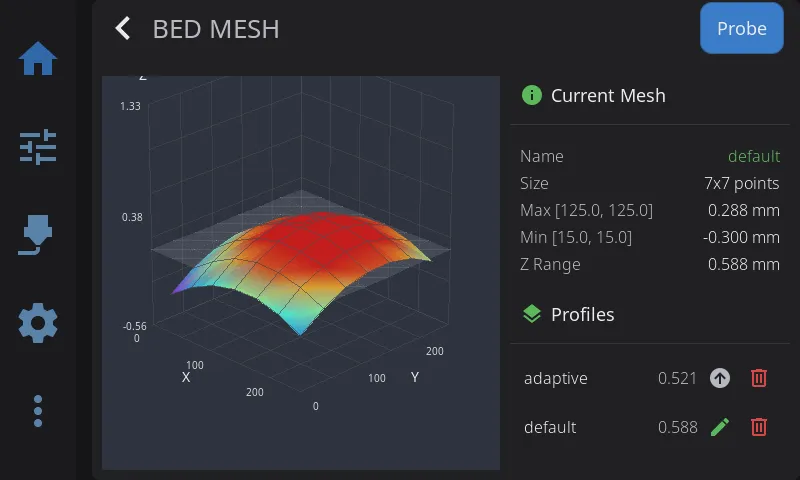
The Bed Mesh panel has two parts: a 3D visualization of your bed surface on the left, and information cards on the right.
Visualization (left):
- Color gradient: Blue (low) to Red (high)
- Touch to rotate the 3D view
- When no mesh is loaded, the panel shows a “No mesh loaded” placeholder
Current Mesh card (right): shows the active profile name, mesh size (probe-point grid), highest and lowest points, and the overall Z range (variance).
Probe a new mesh: tap Probe in the panel header. HelixScreen first asks which profile to store the new mesh in. The name starts as default, the profile Klipper loads at startup; type another name to keep the new mesh separate. Tap Start to probe. When probing finishes, HelixScreen asks whether to save the printer configuration so the mesh survives a restart.
The visualization mode (3D, 2D, or Auto) can be changed in Settings > Display.
Profile Management
Section titled “Profile Management”The Profiles card on the right lists your saved mesh profiles. Each row shows the profile name and its Z range, with action icons on the right:
| Icon | Appears on | What It Does |
|---|---|---|
| Load (up arrow) | Inactive profiles | Loads that saved mesh, making it the active profile |
| Rename (pencil) | The active profile | Opens the rename dialog (see below) |
| Delete (trash) | Every profile | Removes that saved profile |
Tapping a row (or its Load icon) loads that profile.
Renaming a profile:
- Tap the pencil icon on the active profile
- The rename dialog shows the current name and a field for the new name
- Enter a new profile name and tap Rename. Klipper reserves
defaultfor new calibrations, so a profile cannot be renamed to it.
After renaming or deleting, HelixScreen asks “Save changes to persist them across restarts?” Profile changes only live in memory until saved:
- Tap Save to write the change to your printer’s saved configuration. This persists the change across restarts but restarts Klipper.
- Tap Don’t Save to keep the change for the current session only — it will be lost when the printer reboots.
Screws Tilt Adjust
Section titled “Screws Tilt Adjust”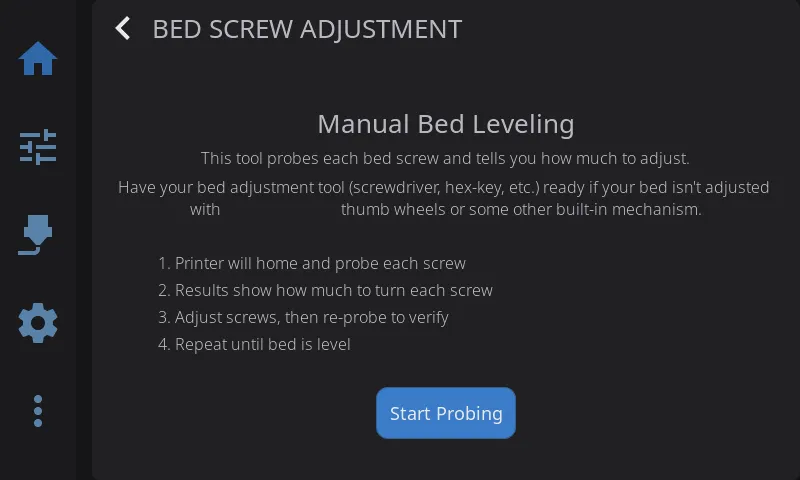
Assisted manual bed leveling:
- Navigate to Advanced > Screws Tilt
- Tap Measure to probe all bed screw positions
- View adjustment amounts (e.g., “CW 00:15” = clockwise 15 minutes)
- Adjust screws and re-measure until level
Color coding:
- Green: Level (within tolerance)
- Yellow: Minor adjustment needed
- Red: Significant adjustment needed
Sharing the Results
Section titled “Sharing the Results”Next to Done and Re-probe in the results view, a share button (QR icon) opens a card with every screw’s name, probed height, and adjustment spelled out, plus a QR code alongside. The QR encodes exactly the same results as plain text — scan it with any phone camera and the numbers appear there, ready to paste into your notes or a forum post. A printer has no clipboard to copy from, so the QR is how the values leave the screen.
The reference screw is labeled base (it is the one everything else is measured against), and a screw needing no adjustment shows --.
Input Shaper
Section titled “Input Shaper”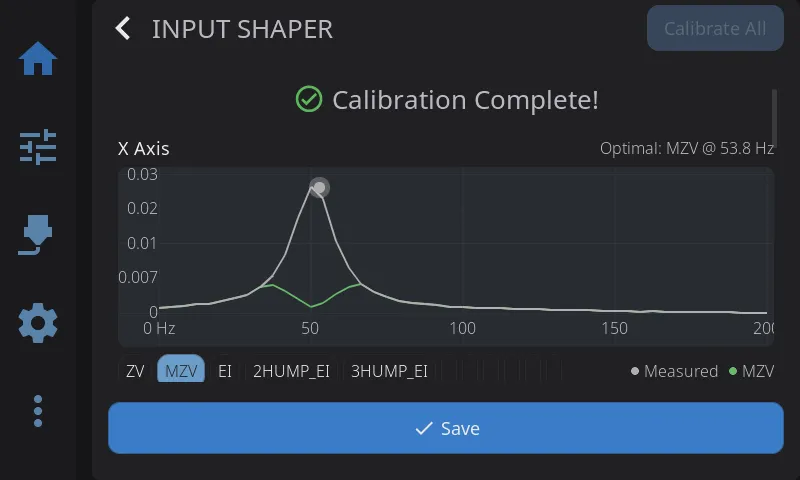
Tune vibration compensation for smoother, faster prints:
- Navigate to Advanced > Input Shaper
- Review your current shaper configuration displayed at the top
- Pre-flight check verifies accelerometer is connected
- Select axis to test (X or Y)
- Tap Calibrate to run the resonance test. While the printer sweeps, a progress bar fills from 0 to 100%; once the sweep finishes it is replaced by a spinner with an “Analyzing data… Ns” counter while the printer’s host crunches the samples. On slower printers the analysis alone can take a few minutes per axis — that wait is why the whole run gets a 10-minute timeout
- View frequency response chart with interactive shaper overlay toggles
- Review the comparison table showing recommended shaper and alternatives (frequency, vibration reduction, smoothing)
- Check the change summary under the table: it shows what was active before the run (“ei @ 69.8 Hz -> mzv @ 53.8 Hz”) and, when the chart has data, how much vibration the old setting would leave on today’s measurements versus the new one (“Old setting on today’s data: 8.4% residual - now: 7.8%”)
- Tap Apply to use for this session or Save Config to persist
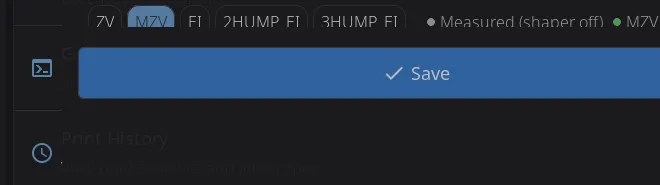
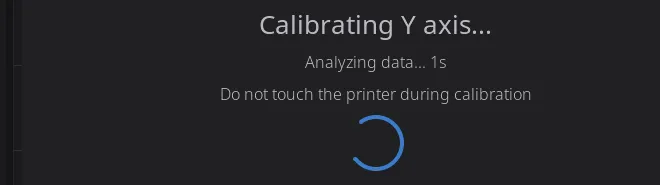

Chart features:
- The chart plots relative vibration (see the caption above each chart): lower is less residual vibration
- The legend keys all three curve kinds: Measured (shaper off) is the raw vibration your printer produced during the test, the shaper chips show the vibration each shaper would leave behind, and Previous shows what your old setting would have left behind (only shown when a previous setting existed)
- Toggle different shaper types on/off to compare their frequency response curves
- Platform-adaptive: full interactive charts on desktop, simplified on embedded hardware
- Per-axis results shown independently
Creality K1/K2 note: some Creality firmware versions overwrite the saved X-axis result with the Y-axis values when you calibrate both axes. HelixScreen detects this and shows a warning on the X results card — the X values it measured were correct, but the printer’s saved config discards them. (On a Y-only run the warning appears on the Y card instead, since there is no X card to carry it.) Re-run Calibrate X alone and save if you want the measured X values kept.
Requirement: Accelerometer must be configured in Klipper for measurements. If no accelerometer is detected, the pre-flight check will show a warning.
Probe Management
Section titled “Probe Management”View and control your Z probe from Advanced > Probe Management. HelixScreen auto-detects your probe type and shows the appropriate controls.
Supported probe types:
| Probe | Detected As | Type-Specific Controls |
|---|---|---|
| Cartographer | Cartographer | Calibrate, Touch Cal, Scan Cal |
| Beacon | Beacon | Calibrate, Auto-Calibrate |
| BTT Eddy / Mellow Fly Eddy | Eddy Current | Calibrate, Drive Current Cal |
| BLTouch | BLTouch | Deploy, Stow, Reset, Self-Test |
| Voron Tap | Voron Tap | — |
| Klicky | Klicky | Deploy, Dock |
| Standard probe | Probe | — |
Universal actions (all probe types):
| Button | What It Does |
|---|---|
| Accuracy Test | Runs PROBE_ACCURACY to check probe repeatability |
| Z-Offset Cal | Opens the interactive Z-offset calibration panel |
| Bed Mesh | Opens the bed mesh calibration panel |
Configuration: Tap any config row (X/Y offset, samples, speed, retract distance, tolerance) to edit probe settings directly — changes are saved to your Klipper config with a firmware restart.
Z-Offset Calibration
Section titled “Z-Offset Calibration”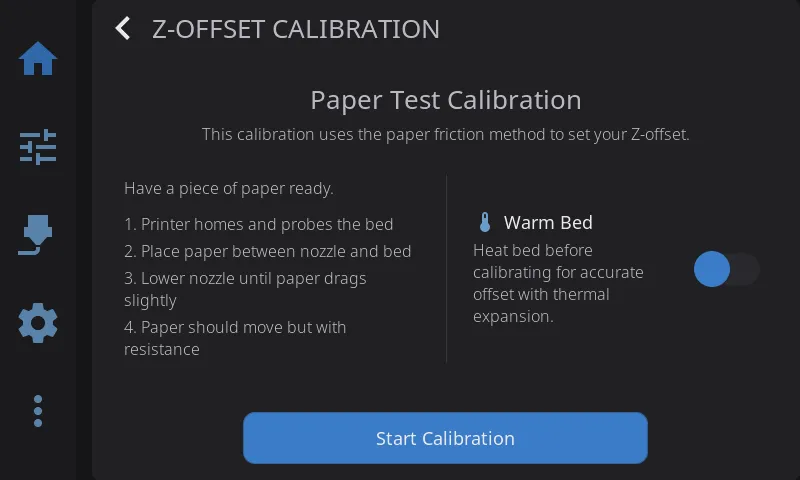
Interactive panel for dialing in your Z-offset when not printing. Works with all probe types — Cartographer, Beacon, BLTouch, eddy current probes, and standard probes.
- Navigate to Advanced > Z-Offset, or tap Z-Offset Cal in the Probe Management overlay
- Optionally enable Warm Bed to heat the bed before calibrating (accounts for thermal expansion)
- Tap Start — the printer homes and begins the calibration sequence
- Use the +/− adjustment buttons to lower the nozzle (paper test: adjust until paper drags slightly)
- Tap Accept when satisfied, or Abort to cancel
- The offset is saved to your Klipper config automatically
HelixScreen picks the right calibration command for your setup (PROBE_CALIBRATE, Z_ENDSTOP_CALIBRATE, or SET_GCODE_OFFSET) based on your printer’s detected probe configuration.
Quick access: A Z Calibration button is also available on the Controls panel for one-tap access.
Belt Tension
Section titled “Belt Tension”Belt Tension is not available in HelixScreen 1.0. The 1.0 tool could not read the accelerometer data Klipper writes, so it failed on every printer, and it has been withdrawn. HelixScreen 1.1 adds a new belt tension tuner as a beta feature: you pluck each belt by hand and it reads the belt’s frequency from the accelerometer live.
Heater Calibration (PID / MPC)
Section titled “Heater Calibration (PID / MPC)”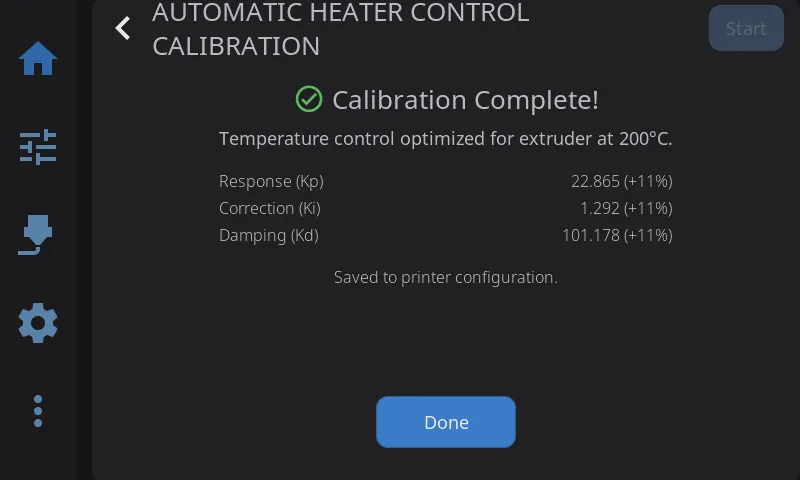
Calibrate temperature controllers for stable heating. HelixScreen supports two calibration methods:
- PID — Classic proportional-integral-derivative tuning. Works on all Klipper firmware.
- MPC (Beta) — Model Predictive Control. A physics-based thermal model that can provide more stable temperatures. Requires Kalico firmware (a Klipper fork with MPC support).
PID Calibration
Section titled “PID Calibration”- Navigate to Advanced > Heater Calibration
- Select Nozzle or Bed
- Choose a material preset (PLA, PETG, ABS, etc.) or enter a custom target temperature
- Optionally set fan speed — calibrating with the fan on gives more accurate results for printing conditions
- Tap Start to begin automatic tuning
During calibration:
- Live temperature graph shows the heater cycling in real-time
- Progress percentage updates as calibration proceeds
- Abort button available if you need to stop early
- A 20-minute timeout acts as a safety net for stuck calibrations (slow-cooling beds can legitimately take longer than 15 minutes, so the limit sits above that)
When complete:
- View new PID values (Kp, Ki, Kd) with old-to-new deltas so you can see what changed
- Tap Save Config to persist the new values to your Klipper configuration
Tip: Run PID tuning after any hardware change (new heater, thermistor, or hotend) and with the fan speed you typically use while printing.
MPC Calibration (Beta — Kalico Only)
Section titled “MPC Calibration (Beta — Kalico Only)”If you are running Kalico firmware and have beta features enabled, a Method selector appears with MPC and PID options. HelixScreen auto-detects Kalico — the selector only appears when it is detected.
- Navigate to Advanced > Heater Calibration
- Select MPC in the Method selector (marked with a BETA badge)
- Select Nozzle or Bed
- Choose a target temperature preset
- For nozzle calibration, select a fan calibration level: Quick (3 points), Detailed (5 points), or Thorough (7 points) — more points improve accuracy but take longer
- If switching from PID to MPC for the first time, enter your heater wattage (check your heater’s rating — typically 40–60W for hotends)
- Tap Start
First-time MPC switch: If your heater is currently configured for PID, HelixScreen will automatically update your Klipper configuration to MPC mode and restart Klipper before beginning calibration. A progress screen shows “Updating Configuration…” during this step.
When complete:
- View MPC model parameters: Heat Capacity, Sensor Response, Ambient Transfer, and Fan Transfer (nozzle only)
- Results are automatically saved to your Klipper configuration
See Also
Section titled “See Also”- Motion & Positioning — Jog controls used during manual calibration
- Settings: Printing — Machine limits and Z movement configuration
- Printing — Z-offset fine-tuning during active prints
Next: Settings | Prev: Barcode Scanner | Back to User Guide