
Barcode Scanner
HelixScreen can read Spoolman QR codes from a USB or Bluetooth barcode scanner, so you can identify a spool by scanning it instead of picking from a list.
This guide covers both USB and Bluetooth scanners, and how to fix the most common Bluetooth pairing problem on Raspberry Pi.
Scanning is a shortcut for assigning spools — see Filament Tracking & Spoolman for what happens once a spool is linked.
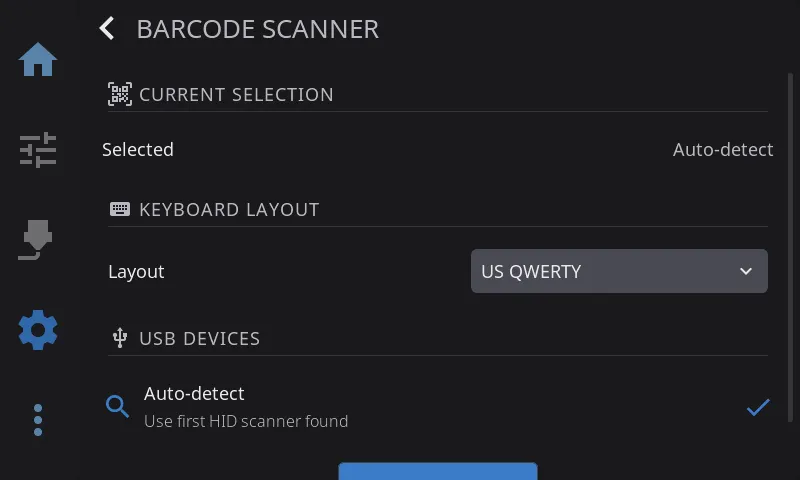
The Barcode Scanner settings overlay lives at Settings → Hardware & Devices → Spoolman → Barcode Scanner.
USB Scanners
Section titled “USB Scanners”Most USB barcode scanners present themselves to the Pi as a plain HID keyboard — no driver install needed.
- Plug the scanner into any USB port.
- Open Settings → Hardware & Devices → Spoolman → Barcode Scanner.
- If the scanner appears under “USB devices”, tap it to select. Otherwise “Auto-detect” will pick the first HID keyboard that isn’t your physical keyboard.
- Open the QR scanner overlay (wherever the app offers it — e.g. from the filament panel) and test by scanning a Spoolman QR code.
Keyboard Layout
Section titled “Keyboard Layout”If scanned text comes out garbled, the scanner is emitting keycodes for a different keyboard layout than the one HelixScreen is decoding. Use the Layout setting under Barcode Scanner → Keyboard Layout to pick the layout your scanner is programmed to use (QWERTY is the default).
Bluetooth Scanners
Section titled “Bluetooth Scanners”HelixScreen supports Bluetooth HID barcode scanners (the kind that pair as a keyboard-like device).
Pairing
Section titled “Pairing”- Power on the scanner. Make sure it’s in Classic Bluetooth pairing mode (not BLE). The scanner’s manual will have a config barcode to select Classic mode if needed — most default to Classic.
- Open Settings → Hardware & Devices → Spoolman → Barcode Scanner, then under Bluetooth Scanners tap Scan.
- When your scanner appears in the dropdown, tap Pair.
- If pairing succeeds, the scanner becomes selected automatically.
⚠️ Scanner bonded but didn’t attach as a keyboard
Section titled “⚠️ Scanner bonded but didn’t attach as a keyboard”If you see a warning toast that the scanner bonded but didn’t attach as a keyboard (it may also suggest adding ClassicBondedOnly=false), your adapter is refusing the HID connection because the scanner didn’t perform a bonded pair.
This is a security default in BlueZ: HID devices must be bonded (cryptographic key exchanged and stored) before the kernel will route their keystrokes. Many inexpensive barcode scanners only support “Just Works” pairing, which produces a paired-but-not-bonded link — and gets rejected.
Relax the HID-bonded-only policy on your Pi. You’ll need SSH access.
- SSH to the Pi:
Terminal window ssh pi@helixpi.local - Edit the BlueZ input config:
Terminal window sudo nano /etc/bluetooth/input.conf - Find the line:
Uncomment it and change to:#ClassicBondedOnly=trueClassicBondedOnly=false
- Save and restart BlueZ:
Terminal window sudo systemctl restart bluetooth - In HelixScreen, forget any previous pairing for this scanner, then pair again. You should not see the warning this time and scanning into the QR overlay will work.
Security note:
ClassicBondedOnly=falselets any unbonded HID peripheral connect, which slightly widens the attack surface for keystroke injection. This is only a concern in hostile RF environments. For typical home and workshop use, the change is safe.
BLE Mode
Section titled “BLE Mode”Some scanners support both Classic and BLE modes. BLE uses different pairing mechanics that always bond, so the issue above doesn’t apply — but not all scanners advertise reliably in BLE. If Classic works, stick with it.
Sharing a scanner with another tool (device blacklist)
Section titled “Sharing a scanner with another tool (device blacklist)”If another program on the same Pi already reads your barcode scanner — for example afc-spool-scan, which loads spools straight into AFC — HelixScreen can get in its way. HelixScreen automatically claims the first keyboard-like device it finds, and a USB barcode scanner looks exactly like a keyboard, so both programs end up fighting over it.
You can tell HelixScreen to leave a specific device alone by adding its USB ID to a blacklist. A blacklisted device is ignored completely — HelixScreen won’t use it for keyboard input or for the built-in scan overlay — leaving it free for the other tool. It still shows up in the Barcode Scanner device list so you can identify it.
1. Find the scanner’s USB ID
Section titled “1. Find the scanner’s USB ID”The ID is a vendor:product pair like 002c:261a. Find it either way:
- In HelixScreen: open Settings → Hardware & Devices → Spoolman → Barcode Scanner. Each entry in the USB device list shows its ID.
- Over SSH: run
lsusband look for your scanner. The ID is the pair right afterID, e.g.Bus 001 Device 005: ID 002c:261a ....
2. Add it to your settings
Section titled “2. Add it to your settings”Edit ~/helixscreen/config/settings.json (the path varies by platform — see the table in Configuration) and add the ID to the input section:
"input": { "device_blacklist": ["002c:261a"]}Use lowercase, and list as many devices as you need: ["002c:261a", "1a2c:4c5e"].
3. Restart HelixScreen
Section titled “3. Restart HelixScreen”sudo systemctl restart helixscreenAfter the restart, HelixScreen no longer opens that device, and your other scanner tool has it to itself.
Troubleshooting
Section titled “Troubleshooting”| Symptom | Fix |
|---|---|
| No scanner appears in the dropdown | Is Bluetooth enabled on your Pi? See Bluetooth Setup. |
| “Pairing failed” (Connection timed out) | Scanner isn’t in pairable mode. Power-cycle it and scan its Classic-mode config barcode. |
| “Pairing failed” (Host is down) | Scanner is flashing but refusing Classic connections. Power-cycle and retry; some scanners get stuck between BLE and Classic advertising. |
| “Scanner bonded but didn’t attach as a keyboard” | Set ClassicBondedOnly=false — see above. |
| Scanner pairs, but scanned text types into the app’s UI instead of being captured as a QR code | Open the QR scanner overlay before scanning. Outside the overlay, the scanner is just a keyboard. |
| Scanned text has wrong characters | Set the correct Layout under Barcode Scanner → Keyboard Layout. |
| Another tool (e.g. afc-spool-scan) stopped seeing the scanner after installing HelixScreen | Blacklist the device so HelixScreen ignores it — see Sharing a scanner with another tool. |
- Only one scanner (USB or Bluetooth) is used at a time. If both are configured, the paired Bluetooth scanner wins.
- When a Bluetooth scanner is selected, HelixScreen captures its keystrokes exclusively so they don’t leak into other UI widgets. USB scanners run in passive mode (some scanners rely on this) — if USB scanner keystrokes leak into focused text inputs, that is a known limitation.
Next: Calibration & Tuning | Prev: Label Printing | Back to User Guide