
Home Panel
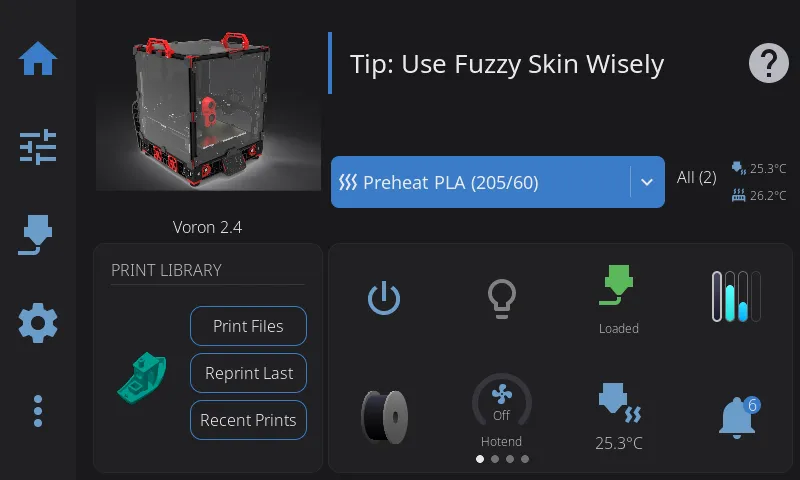
The Home Panel is your printer dashboard — a fully customizable grid of widgets spread across multiple pages, like home screens on a phone. You choose what appears, where it goes, how big each widget is, and can rearrange everything with drag-and-drop.
The Widget Grid
Section titled “The Widget Grid”Your dashboard is built from widgets — individual cards that display printer information and controls. Widgets live on a flexible grid:
- The grid is 8 columns by 5 rows on standard and large screens (6x4 on small screens)
- Each widget occupies one or more grid cells
- Widgets cannot overlap — the grid enforces clean layouts
- Everything saves automatically and persists across restarts and updates
When you first launch HelixScreen, a default layout is created with your printer image, print status, tips, and commonly used widgets. From there, you can customize everything.
On ultrawide and portrait screens
Section titled “On ultrawide and portrait screens”Unusually shaped screens don’t use the fixed grid above — HelixScreen works out the column and row counts from the screen itself, aiming for cells roughly 160px wide and 120px tall.
- Ultrawide (e.g. 1920x480): extra columns, same number of rows — a 1920x480 panel gets 12 columns by 4 rows instead of 6x4.
- Portrait (e.g. 480x800, 320x1480): both directions are recalculated. A 480x800 panel gets 3 columns by 6 rows; a tall, narrow 320x1480 panel gets 2 columns by 12 rows.
Portrait screens also start from their own default widget set, not the landscape one. Tips is not one of them: it is a wide widget, and on a 2- or 3-column grid it would eat a third to a half of a row for rotating hints. You can still add it yourself from the Widget Catalog if you want it.
Buttons, input fields, and headers are sized from the screen’s height on portrait panels, so a tall screen gets taller, easier-to-hit controls rather than the cramped ones its narrow width would otherwise imply.
Portrait overall is still alpha — only the home dashboard adapts this way. Other panels still fall back to the landscape layout. See Ultrawide or portrait screen looks stretched, cramped, or clipped.
Multiple Pages
Section titled “Multiple Pages”Your dashboard can have multiple pages of widgets — just like home screens on a phone. Each page has its own independent grid layout.
Navigating Between Pages
Section titled “Navigating Between Pages”- Swipe left or right anywhere on the widget grid to move between pages
- Dot indicators at the bottom of the screen show which page you’re on and how many pages you have
- If you only have one page, the dots and swiping are hidden — it works exactly like a single-page dashboard
The Main Page
Section titled “The Main Page”One page is designated as the main page (the first page by default). This is the page shown when you first connect to your printer or navigate to the Home panel.
Home button behavior:
- From any other panel, tapping the Home button takes you back to the Home panel — to whichever page you were last viewing
- Tapping Home again while already on the Home panel jumps to the main page
- So the main page is always at most two taps of the Home button away
Adding a Page
Section titled “Adding a Page”You add a page while swiping normally, not in Edit Mode:
- Swipe left past your last page: an “Add page” tile appears, with a round “+” button and its caption
- Tap the “+”: a new empty page is created immediately and you land on it
- Add widgets to the new page as usual: long-press to enter Edit Mode, then long-press an empty spot to open the Widget Catalog (see Adding a Widget)
You can have up to 8 pages maximum.
Deleting a Page
Section titled “Deleting a Page”- Long-press the widget grid to enter Edit Mode while on the page you want to delete (this must be a secondary page; see below)
- Tap the red trash button in the top-right corner
- Confirm with Delete in the “Delete Page” dialog
The page and all widgets on it are removed. The main page cannot be deleted: the trash button only appears on secondary pages, and only when you have more than one page.
Page Limit
Section titled “Page Limit”The dashboard supports up to 8 pages. Once you reach the limit, the “Add page” tile no longer appears when you swipe past your last page.
Edit Mode
Section titled “Edit Mode”Edit Mode is how you customize your dashboard layout. While in Edit Mode, all normal widget interactions (tapping to open overlays, etc.) are disabled so you can freely rearrange things.
Edit Mode is on by default. If it triggers accidentally when a finger rests on the screen (common on a tablet lying flat), you have two options: turn it off entirely with Allow Home Screen Editing under Settings → System → Touch & Input, or raise the Long Press Time slider in the same page so a longer hold is required. Both take effect immediately.
Page swiping in Edit Mode: Swiping between pages is disabled while in Edit Mode so you can drag widgets without accidentally changing pages. Add and delete pages from outside Edit Mode (adding) or via the trash button (deleting) as described under Multiple Pages. When you exit Edit Mode, normal page swiping is re-enabled.
Entering Edit Mode
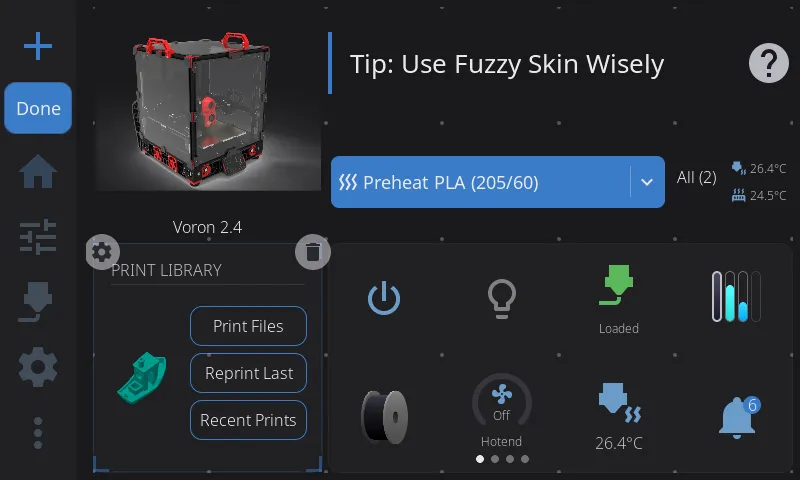
Section titled “Entering Edit Mode”Long-press (press and hold for about half a second) anywhere on the widget grid. You’ll see:
- A faint grid of dots appears showing the underlying grid structure
- Corner brackets appear on the widget under your finger, indicating it’s selected
- All normal widget tap actions are disabled — you can touch anything without triggering it
The widget you long-pressed is automatically selected and ready to drag. You can start moving it immediately without lifting your finger.
Selecting a Widget
Section titled “Selecting a Widget”- Tap any widget to select it — animated corner brackets appear at its edges
- The corner brackets pulse gently to indicate the active selection
- Tap empty space to deselect the current widget
- Only one widget can be selected at a time
Moving a Widget
Section titled “Moving a Widget”- Select a widget by tapping it (or it’s auto-selected when you enter Edit Mode)
- Press and drag the widget to a new position
- As you drag, a snap preview appears showing where the widget will land:
- Blue/accent preview = valid drop position
- Red preview = invalid position (would overlap another widget or go off-grid)
- Release to drop the widget — it snaps into the grid position with a smooth animation
- If the position is invalid, the widget returns to its original spot
A faint outline stays at the widget’s original position while dragging so you can see where it came from.
Resizing a Widget
Section titled “Resizing a Widget”Not all widgets are resizable — some (like Power and Shutdown) are always 1x1. For widgets that support resizing:
- Select the widget by tapping it
- Look for thin edge lines along the sides of the selected widget — these are the resize handles
- Drag from any edge to resize in that direction
- As you drag, two previews appear:
- A thin border follows your finger exactly (pixel-tracking)
- A grid-snapped preview shows the final size
- The widget snaps to valid grid sizes based on its constraints:
- Each widget has a minimum and maximum size (see the widget table below)
- Resizing stops at the grid boundary
- Resizing stops if it would overlap another widget
- Release to apply the new size — the widget rebuilds at its new dimensions
Some widgets adapt their content based on size. For example, the Digital Clock shows just the time at 1x1, adds the date at 2x1, and shows uptime too at 2x2 or larger.
Adding a Widget
Section titled “Adding a Widget”There are two ways to add widgets:
- While in Edit Mode, long-press on an empty area of the grid
- The Widget Catalog opens
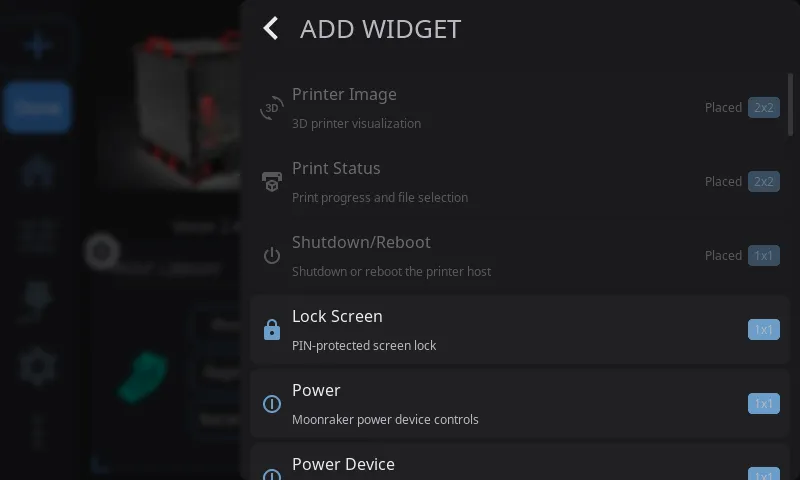
The Widget Catalog shows all available widgets in a scrollable list. Each entry shows:
- Widget name and description
- Size badge (e.g., “2x1”)
- Widgets already on your dashboard are dimmed and labeled “Placed”
Tap any available widget to add it. HelixScreen places it near where you long-pressed, or finds the best available spot if that area is occupied. If the grid is completely full, you’ll need to remove a widget first.
Removing a Widget
Section titled “Removing a Widget”- Select the widget you want to remove
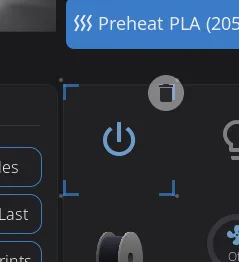
- A trash icon appears — drag the widget to the trash, or tap the delete button
- The widget is removed from your grid
Removing a widget doesn’t delete any data — you can always add it back from the Widget Catalog.
Configuring a Widget
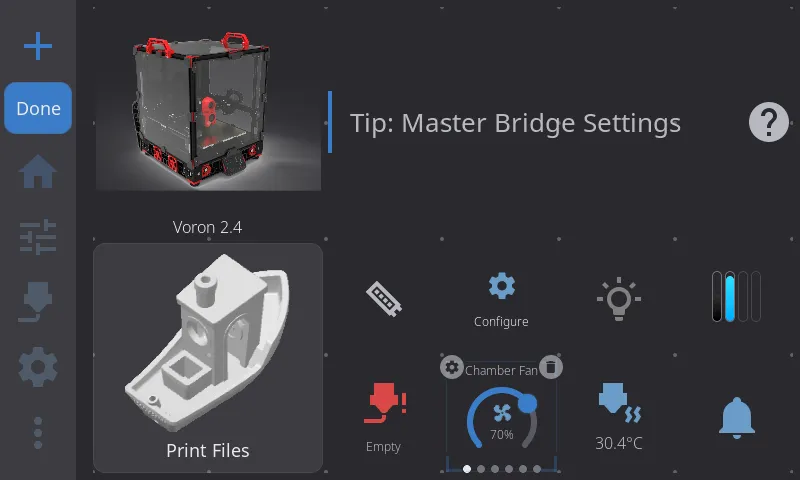
Section titled “Configuring a Widget”Some widgets have settings you can change directly from Edit Mode. When you select one of these configurable widgets, a gear icon appears in the upper-left corner (the trash icon is in the upper-right).
Configurable widgets:
| Widget | What the gear button does |
|---|---|
| Temperatures | Toggles between Stack and Carousel display mode |
| Fan Speeds | Toggles between Stack and Carousel display mode |
| Temperature Sensors | Toggles between single-sensor and Carousel display mode |
| Fan | Opens the fan picker — choose which fan to monitor |
| Temperature Graph | Opens a configuration modal — toggle sensors on/off and customize series colors |
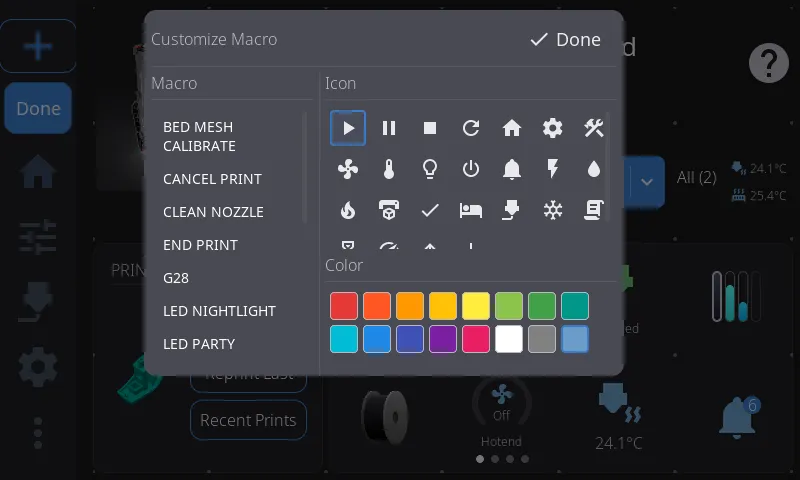
| Macro Button | Opens the config modal — pick the macro, its icon and color, and whether running it asks for confirmation |
| Print Status | Opens the section picker — choose which sections to show |
| Power | Opens the device picker — choose which power device to bind |
| Camera | Opens the camera configuration modal — set rotation and flip |
| Clog Detection | Opens the Clog Detection config modal — set detection source, mode, and thresholds |
To configure a widget:
- Enter Edit Mode (long-press the widget grid)
- Tap the widget you want to configure — corner brackets and action buttons appear
- Tap the gear icon in the upper-left corner
- For Temperatures/Fan Speeds: the widget immediately switches between Stack and Carousel mode. Tap the gear again to switch back.
- For Macro Buttons: a config modal opens with three tabs. Macro lists all available Klipper macros — tap one to assign it, and the button updates immediately. Appearance sets the icon and color. Options holds Require Confirmation?, described below.
Resetting to Defaults
Section titled “Resetting to Defaults”Tap the Reset button in the Edit Mode toolbar to restore the default widget layout. This resets all pages back to a single page with the default layout — any extra pages you created are removed. Widget positions and sizes are reset, and the default set of enabled widgets is restored. Your per-widget settings (like display mode preferences) are preserved.
The default layout places:
- Printer Image in the top-left (2x2)
- Print Status below it (2x2)
- Tips across the top-right (4x2)
- Remaining enabled widgets auto-fill the rest of the grid
On a portrait screen the defaults differ: Printer Image and Print Status stack full-width down the top of the grid, Tips is left out, and the rest auto-fill below.
Exiting Edit Mode
Section titled “Exiting Edit Mode”- Tap the Done button in the toolbar
- Or navigate away to any other panel — Edit Mode exits automatically and saves your changes
Available Widgets
Section titled “Available Widgets”Sizes are listed as columns x rows. For example, “2x1” means 2 columns wide and 1 row tall.
Printer Info & Status
Section titled “Printer Info & Status”| Widget | Description | Default | Min | Max | Resizable | Hardware Required |
|---|---|---|---|---|---|---|
| Printer Image | Your printer’s photo. Tap to open the Printer Manager overlay where you can change the name, image, and see hardware info. | 2x2 | 1x1 | 4x3 | Yes | — |
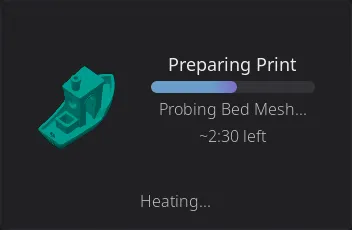
| Print Status | Tracks the print job in all three of its states — idle (pick a file), preparing (pre-print steps with a progress bar), and printing (filename, percentage, ETA, elapsed time). Tap opens the full Print Status overlay whenever a job is preparing or printing, or the file browser when idle. | 2x2 | 2x1 | 4x3 | Yes | — |
| Print Stats | Print history statistics — total prints, success rate, and total print time. Tap to open the full print history overlay. | 2x2 | 2x1 | 3x2 | Yes | — |
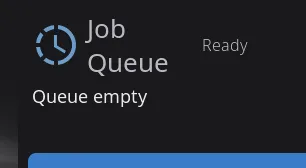
| Job Queue | Shows the number of queued print jobs. Tap to open the Job Queue Manager modal (see Job Queue Manager below). | 2x2 | 2x1 | 4x3 | Yes | — |
| Digital Clock | Current time and date. Respects your 12/24-hour preference from display settings. Content adapts to size: time only at 1x1, time + date at 2x1, time + date + system uptime at 2x2+. | 2x1 | 1x1 | 3x3 | Yes | — |
| Notifications | Shows pending notification count with a severity badge (info/warning/error). Tap to open the notification history overlay. | 1x1 | 1x1 | 2x1 | Horizontal only | — |
| Tips | Rotating helpful tips about 3D printing and HelixScreen features. Tap any tip to see the full article. Tips rotate automatically. | 4x2 | 2x1 | 6x2 | Horizontal only | — |
| Network | Current network connection status — WiFi signal strength (with bar indicator) or Ethernet. | 1x1 | 1x1 | 2x1 | Horizontal only | — |
 | Camera | Live webcam feed from your MJPEG stream. Tap to go fullscreen. Automatically detects webcams configured in Moonraker. See Camera Widget below for setup tips. | 2x2 | 1x1 | 4x3 | Yes | Webcam configured |
Temperature & Climate
Section titled “Temperature & Climate”| Widget | Description | Default | Min | Max | Resizable | Hardware Required |
|---|---|---|---|---|---|---|
| Nozzle Temperature | Live nozzle temperature for the active extruder, with an animated heating icon that pulses when the heater is active. Tap to open the temperature graph overlay. (Singular — shows one nozzle. For all extruders at once, use Nozzle Temperatures below.) | 1x1 | 1x1 | 2x2 | Yes | — |
| Nozzle Temperatures | Shows all extruder temperatures at once, each as a labeled row with current and target readings color-coded by state (green at-temp, red heating, blue cooling, gray off), plus a bed row at the bottom. On multi-tool printers each extruder gets its own row, labeled “T0”, “T1”, … (or “Nozzle 1”, “Nozzle 2”, … at wider sizes). Tap a nozzle row to open the nozzle temperature graph, or the bed row for the bed graph. (Plural — for single-extruder printers the singular Nozzle Temperature widget is simpler.) | 1x2 | 1x1 | 2x3 | Yes | — |
| Bed Temperature | Live bed temperature with current and target readings. Tap to open the temperature graph overlay. | 1x1 | 1x1 | 2x2 | Yes | — |
| Chamber Temperature | Live chamber temperature with current and target readings, shown with a chamber icon and an animated heating indicator. Tap to open the temperature graph overlay focused on the chamber. Only available on printers with a chamber temperature sensor or heater. | 1x1 | 1x1 | 2x2 | Yes | Chamber sensor or heater |
| Temperatures | Stacked view showing nozzle, bed, and chamber temperatures in one widget. Each row shows current temp and target. Also available in Carousel mode (see Display Modes below). Tap any reading to open the temperature graph. | 1x1 | 1x1 | 3x2 | Yes | — |
| Temperature Sensors | Monitor additional temperature sensors (chamber, enclosure heater, etc.) in a single-sensor or carousel view. You can add multiple instances, each configured to a different sensor. Also available in Carousel mode. | 1x1 | 1x1 | 2x1 | Horizontal only | Extra temp sensors |
| Temperature Graph | Live temperature chart with configurable sensor series. Shows colored lines for each sensor with optional target setpoint lines. Content adapts to size — larger sizes show legends, axis labels, gradients, and temperature readouts. Tap to open the full-screen graph overlay. Configure which sensors to display via the gear icon in Edit Mode. You can add multiple instances. | 2x2 | 1x1 | 6x4 | Yes | — |
| Preheat | Quick preheat buttons with material selection. Tap a material to instantly set nozzle and bed temperatures to that material’s profile. | 3x1 | 2x1 | 4x1 | Horizontal only | — |
| Humidity | Enclosure humidity reading from a connected sensor. | 1x1 | 1x1 | 2x2 | Yes | Humidity sensor |
| Widget | Description | Default | Min | Max | Resizable | Hardware Required |
|---|---|---|---|---|---|---|
| Fan Speeds | Part cooling, hotend, and auxiliary fan speeds at a glance. Fan icons spin when running. Also available in Carousel mode with arc slider controls. Tap to open the Fan Control overlay. You can add multiple instances. | 1x1 | 1x1 | 3x2 | Yes | — |
| Fan | Monitor a single fan’s speed. Tap to open a fan picker to choose which fan to display. You can add multiple instances, each showing a different fan. Configure via the gear icon in Edit Mode. | 1x1 | 1x1 | 2x1 | Horizontal only | — |
Filament & Material
Section titled “Filament & Material”| Widget | Description | Default | Min | Max | Resizable | Hardware Required |
|---|---|---|---|---|---|---|
| Active Spool | Shows the currently loaded Spoolman spool — displays the spool color, material type, brand, and remaining weight. Tap to edit the active spool. At compact sizes (1x1) shows just the colored spool icon; at wider sizes shows material details alongside. | 1x1 | 1x1 | 4x2 | Yes | Spoolman configured |
| AMS Status | A live view of your multi-material spool lanes. At 1x it’s a compact row of colored bars — one per lane, each filled to show roughly how much filament is left. At 2x and wider it switches to a detailed view: a small spool for each lane with its lane number, material type (PLA, PETG…), and percent remaining, and the currently loaded lane’s number badge is highlighted green. The spools size to fit the widget — 2 across at 2x, 4 across at 4x — and any lanes that don’t fit scroll sideways. Tap for the full AMS panel. | 1x1 | 1x1 | 4x2 | Yes | AMS/MMU detected |
| Filament Sensor | Filament runout detection status. Shows whether filament is loaded. | 1x1 | 1x1 | 2x1 | Horizontal only | Filament sensor |
| Width Sensor | Live filament width reading from a diameter sensor. | 1x1 | 1x1 | 2x2 | Yes | Width sensor |
| Clog Detection | Filament clog and flow health monitor. Shows a clog/flow arc meter, and a buffer sync meter on Happy Hare printers. Tap to open the Buffer Status detail modal. Configurable via the gear icon in Edit Mode. See Clog Detection Widget below. | 1x1 | 1x1 | 2x2 | Yes | AMS/MMU detected |
| Bypass | One-tap toggle for external-spool bypass. Shows the bypass state (icon changes, and the external spool’s color and material while engaged) — tap to toggle. Same guards as the AMS panel’s bypass toggle: if filament is loaded from a lane it unloads first, and while a job holds the printer (preparing, printing, or paused) the tap is refused with a “Bypass cannot be changed while printing” warning. | 1x1 | 1x1 | 2x1 | Horizontal only | Filament system with bypass |
Lighting
Section titled “Lighting”| Widget | Description | Default | Min | Max | Resizable | Hardware Required |
|---|---|---|---|---|---|---|
| LED Light | Quick on/off toggle for your printer’s LEDs. Tap to open the full LED Control Overlay with color picker, brightness, effects, and WLED controls. | 1x1 | 1x1 | 2x1 | Horizontal only | LEDs configured |
| LED Controls | One-tap shortcut to open the LED color and brightness controls overlay directly. | 1x1 | 1x1 | 1x1 | No | LEDs configured |
Controls & Automation
Section titled “Controls & Automation”| Widget | Description | Default | Min | Max | Resizable | Hardware Required |
|---|---|---|---|---|---|---|
| Macro Button | One-tap buttons to run configured macros. Add as many Macro Button widgets as you like, each independently configurable — assign a macro to each via the gear icon in Edit Mode. See Macro Button confirmation. | 1x1 | 1x1 | 2x1 | Horizontal only | — |
| Macros | One-tap shortcut to open the Macros panel for browsing and executing Klipper macros. | 1x1 | 1x1 | 1x1 | No | — |
| G-code Console | One-tap shortcut to open the G-code Console overlay for sending commands and viewing Klipper responses. See G-code Console Widget below. | 1x1 | 1x1 | 1x1 | No | — |
| Tool Switcher | Quick tool switching for multi-tool printers (IDEX, toolchangers, multi-head). Shows the available tools and lets you switch the active tool with one tap. See Tool Switcher Widget below. | 1x1 | 1x1 | 2x2 | Yes | Multi-tool printer |
| Power | Toggle a Moonraker power device (PSU, lights, etc.) with one tap. You can add multiple instances, each bound to a different device. Shows the device name, state, and a customizable icon. | 1x1 | 1x1 | 1x1 | No | Power devices |
System
Section titled “System”| Widget | Description | Default | Min | Max | Resizable | Hardware Required |
|---|---|---|---|---|---|---|
| Shutdown/Reboot | Shutdown or reboot your printer’s host system. Shows a confirmation dialog before acting. | 1x1 | 1x1 | 1x1 | No | — |
| Firmware Restart | Restart the Klipper firmware. Useful when Klipper enters SHUTDOWN state. This widget automatically appears during firmware errors even if disabled. | 1x1 | 1x1 | 1x1 | No | — |
| Lock Screen | Locks the screen immediately with PIN protection. Only appears in the Widget Catalog after setting a PIN in Settings > Security. | 1x1 | 1x1 | 1x1 | No | PIN set in Settings |
Shutdown/Reboot Widget
Section titled “Shutdown/Reboot Widget”The Shutdown/Reboot widget puts one-tap host shutdown/reboot on your home panel — a faster alternative to the Settings > Advanced shutdown entry. A confirmation dialog always appears first, so there’s no risk of an accidental shutdown. For switching a PSU or smart plug instead, see the Power widget above.
Hardware-Gated Widgets
Section titled “Hardware-Gated Widgets”Some widgets depend on specific hardware being detected by Klipper. If the hardware isn’t present:
- The widget won’t appear in the Widget Catalog
- If hardware is detected later (plugged in, configured), the widget becomes available automatically
- If hardware is removed after placing a widget, the widget hides automatically but keeps its grid position — it reappears if the hardware returns
| Widget | Required Hardware |
|---|---|
| Camera | Webcam configured in Moonraker (crowsnest, camera-streamer, etc.) |
| Chamber Temperature | A chamber temperature sensor ([temperature_sensor chamber]) or chamber heater ([heater_generic chamber]) in Klipper |
| AMS Status | AMS, AFC (Box Turtle), Happy Hare, ACE (Anycubic ACE Pro), or compatible MMU system |
| Bypass | A filament system with a bypass — Creality CFS, FlashForge AD5X IFS, AFC (Box Turtle), or Happy Hare with has_bypass enabled |
| Clog Detection | AMS, AFC, Happy Hare, or compatible MMU with clog/flow detection |
| LED Light / LED Controls | Any LED strip configured in Klipper (neopixel, dotstar, output_pin) |
| Power | Moonraker power devices (PSU control, smart plugs) |
| Filament Sensor | [filament_switch_sensor] or [filament_motion_sensor] in Klipper |
| Humidity | [temperature_sensor] with humidity capability |
| Width Sensor | [hall_filament_width_sensor] in Klipper |
| Temperature Sensors | Extra [temperature_sensor] entries beyond nozzle and bed |
Display Modes: Stack vs. Carousel
Section titled “Display Modes: Stack vs. Carousel”The Temperatures, Fan Speeds, and Temperature Sensors widgets each support two visual modes:
Stack Mode (Default)
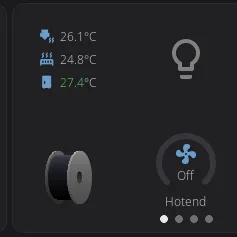
Section titled “Stack Mode (Default)”Compact vertical rows showing all values simultaneously. Each row has an icon, current reading, and target (if applicable). Best when you want to see everything at once without swiping.
Carousel Mode
Section titled “Carousel Mode”Full-size swipeable pages with one item per page. Indicator dots at the bottom show which page you’re on. Swipe left and right to browse.
Temperatures carousel — each sensor (nozzle, bed, chamber) gets its own full-size page with a large animated icon and temperature readout. The nozzle icon pulses when heating. Tap any page to open the temperature graph overlay for that sensor.
Fan Speeds carousel — each fan gets an interactive page with a 270-degree arc slider. Drag the arc to change fan speed directly, without opening a separate control panel. The fan icon spins at a speed proportional to the actual fan RPM.
Switching Modes
Section titled “Switching Modes”Long-press the grid to enter Edit Mode, select the Temperatures, Fan Speeds, or Temperature Sensors widget, and tap the gear icon in the upper-left corner. Each tap toggles the mode. Your preference is saved per widget and persists across restarts.
Widget Interactions
Section titled “Widget Interactions”While not in Edit Mode, widgets respond to taps and other gestures:
| Widget | Tap Action |
|---|---|
| Printer Image | Opens Printer Manager overlay |
| Print Status | Opens Print Status overlay (preparing or printing) or File Browser (idle) |
| Print Stats | Opens print history overlay |
| Job Queue | Opens Job Queue Manager modal |
| Digital Clock | — (display only) |
| Notifications | Opens notification history |
| Tips | Opens the full tip article |
| Network | — (display only) |
| Camera | Opens fullscreen camera view |
| Nozzle Temperature | Opens temperature graph overlay |
| Nozzle Temperatures | Tap a nozzle row opens the nozzle graph; tap the bed row opens the bed graph |
| Bed Temperature | Opens temperature graph overlay |
| Chamber Temperature | Opens temperature graph overlay focused on the chamber |
| Temperatures | Opens temperature graph for the tapped sensor |
| Temperature Sensors | — (display only) |
| Temperature Graph | Opens full-screen temperature graph overlay |
| Preheat | Sets nozzle and bed temperature to the tapped material profile |
| Humidity | — (display only) |
| Fan Speeds (stack) | Opens Fan Control overlay |
| Fan Speeds (carousel) | Drag the arc slider to adjust speed directly |
| Fan | Opens fan picker to select which fan to display |
| AMS Status | Opens AMS panel overlay |
| Filament Sensor | — (display only) |
| Width Sensor | — (display only) |
| Clog Detection | Opens the Buffer Status detail modal |
| LED Light | Opens LED Control Overlay |
| LED Controls | Opens LED Control Overlay |
| Macro Button | Runs the configured macro — asking for parameters or confirmation first, unless you turned that off (details) |
| Macros | Opens the Macros panel overlay |
| G-code Console | Opens the G-code Console overlay |
| Tool Switcher | Switches the active tool (compact size opens a tool picker; larger sizes show tappable tool pills) |
| Power | Toggles the bound power device |
| Shutdown/Reboot | Shows confirmation, then shuts down/reboots |
| Firmware Restart | Restarts Klipper firmware |
| Lock Screen | Locks the screen immediately; requires PIN to unlock |
Macro Button Confirmation
Section titled “Macro Button Confirmation”By default, tapping a Macro Button asks you something before it runs anything. If the macro takes parameters, you get a form to fill in. If it takes none, you get a “Run MACRO?” dialog — the one controlled by Settings > Safety > Confirm before running macros.
That is the right default for a button sitting on the home screen, but it gets in the way of the macros you added a button for precisely because you run them constantly and always the same way.
Require Confirmation? turns it off, per button:
- Enter Edit Mode (long-press the widget grid) and tap the Macro Button
- Tap the gear icon, then the Options tab
- Turn Require Confirmation? off
That button now runs its macro on a single tap, with no parameters and no dialog. Every other Macro Button keeps its own setting — this is per widget, not global.
Two things it does not change:
- Dangerous macros always confirm.
EMERGENCY_STOP,FIRMWARE_RESTART,RESTART,SHUTDOWN,SAVE_CONFIGandM112show their warning dialog no matter what this is set to. - Macros that need parameters get none. Turning confirmation off means the macro runs with its defaults. If a macro genuinely needs a value from you each time, leave confirmation on.
Job Queue Manager
Section titled “Job Queue Manager”Tap the Job Queue widget to open the queue manager — a full-screen modal for managing your print queue.
Queue State
Section titled “Queue State”At the top, you’ll see the current queue state:
- Queue: Ready — the queue is active and will auto-print jobs in order
- Queue: Paused — the queue is paused; queued jobs won’t start automatically
Tap the Start or Pause button to toggle the queue state.
Job List
Section titled “Job List”Below the state indicator, all queued jobs are listed with:
- Filename — the name of the queued G-code file
- Time queued — how long the job has been waiting (e.g., “Queued 2h 15m ago”, “Just queued”)
Actions
Section titled “Actions”Start a print: Tap any job in the list to start it. The start only goes through when the printer is genuinely free — not just finished with the last print, but also not busy starting one (the heating, homing, and leveling before the first layer count as busy). While a job is preparing or printing, the tap is ignored and the job stays in the queue. There’s no on-screen notice when this happens, so if tapping a job does nothing, check whether a print is still preparing or running, and try again once it’s done.
Delete a job: Tap the trash icon on the right side of any job row. The job is immediately removed from the queue.
Close: Tap the X button in the top-right corner to close the modal.
Sync with Other Interfaces
Section titled “Sync with Other Interfaces”The job queue is managed by Moonraker, so jobs added from Mainsail, Fluidd, or the Moonraker API appear here automatically. Likewise, jobs deleted or started from HelixScreen are reflected in those other interfaces.
Clog Detection Widget
Section titled “Clog Detection Widget”The Clog Detection widget monitors your filament path health in real time — detecting clogs, flow issues, and buffer sync problems. It only appears when a compatible filament system is detected (Happy Hare, AFC, or another MMU with clog detection).
What It Shows
Section titled “What It Shows”The widget displays a carousel with one or two pages depending on your hardware:
Page 1 — Clog/Flow Arc Meter (always shown)
A 270-degree arc gauge that fills based on your clog or flow detection reading. The color shifts from green (healthy) through orange (warning) to red (danger) as the value increases. A red danger zone arc shows the warning threshold, and a peak marker tracks the highest reading seen.
The meter adapts to your detection backend:
| Backend | What the meter shows |
|---|---|
| Encoder | Clog percentage (0–100%) — how much the encoder reading deviates from expected |
| Flowguard | Symmetrical flow deviation (−100 to +100) — negative means tangle risk, positive means clog risk |
| AFC | Buffer fault proximity (0–100%) — how close the buffer is to a fault condition |
Page 2 — Buffer Sync Meter (Happy Hare with sync feedback only)
A visual representation of the physical buffer plunger position. Two nested rectangles show the buffer housing and plunger — the plunger slides up or down to indicate filament tension:
- Center position = balanced, healthy tension
- Shifted up = filament under compression (being pushed)
- Shifted down = filament under tension (being pulled)
- Color shifts from green → orange → red as the bias increases
A percentage label shows the exact bias reading (e.g., “+5%”, “−10%”). Swipe between pages using the indicator dots at the bottom.
Tapping the Widget
Section titled “Tapping the Widget”Tap the Clog Detection widget to open the Buffer Status modal — a detailed read-only view of your filament path health:
Happy Hare printers show:
- Filament tension description (e.g., “Slight tension”, “Balanced”)
- Spool motor state
- Gear sync status
- Clog detection mode and flow rate
- Full-size buffer meter visualization
AFC printers show:
- Advancing/trailing buffer state
- Distance to fault (in mm)
- Fault detection status
Configuring Clog Detection
Section titled “Configuring Clog Detection”In Edit Mode, select the Clog Detection widget and tap the gear icon to open the configuration modal:
| Setting | Options |
|---|---|
| Detection Source | Auto (recommended), Encoder, Flowguard, or AFC |
| Detection Mode | Auto or Manual — in Manual mode, a G-code command is sent to the firmware |
| Detection Length | Filament distance threshold (Manual mode only) |
| Danger Threshold | Override the computed danger zone percentage |
Auto mode is recommended — HelixScreen automatically selects the best source based on your detected hardware.
G-code Console Widget
Section titled “G-code Console Widget”The G-code Console widget gives you quick access to a full-featured command console for sending G-code commands directly to Klipper.
Opening the Console
Section titled “Opening the Console”Tap the G-code Console widget on the Home Panel. A full-screen console overlay opens with your recent command history.
Using the Console
Section titled “Using the Console”Sending commands:
- Type a G-code command in the text field at the bottom (e.g.,
G28,M114,FIRMWARE_RESTART) - Press Enter to send
Navigating history:
- Press the Up arrow to recall previous commands
- Press the Down arrow to move forward through history
- The arrows recall your last 20 sent commands (the scrolling log above shows a larger history loaded from Moonraker’s G-code store)
Reading output:
- Commands you sent appear in the scrolling log
- Klipper responses appear below each command
- Error messages are highlighted in red
- Color-coded output from plugins like AFC and Happy Hare is preserved
- Periodic temperature status messages (T:/B: reports) are filtered out to reduce noise
Scrolling:
- The console auto-scrolls to the newest entry as responses arrive
- Scroll up manually to pause auto-scroll and read older output
- Scroll back to the bottom to resume auto-scrolling
Tool Switcher Widget
Section titled “Tool Switcher Widget”The Tool Switcher widget lets you change the active tool on multi-tool printers — IDEX machines, toolchangers, and other multi-head setups. It only appears in the Widget Catalog when more than one tool is detected.
How It Looks
Section titled “How It Looks”The widget adapts to its size:
- Compact (1x1) — shows a swap icon above the current tool’s label (e.g., “T0”). Tap it to open a tool picker popup listing every tool. The active tool is highlighted; tap any other tool to switch to it.
- Larger sizes — shows a row (or two rows) of tappable tool pills, one per tool. The active tool’s pill is highlighted. If there are more tools than fit, the row scrolls horizontally and keeps the active tool in view.
The widget updates automatically when the active tool changes — whether you switch it here, run a tool-change macro, or it changes during a print.
Switching Tools
Section titled “Switching Tools”Tap a tool (or pick one from the popup) to make it active.
- When idle, the tool change happens immediately.
- When printing or paused, a confirmation dialog appears first — changing tools mid-print can cause issues, so you have to confirm before it proceeds.
Tapping the tool that’s already active does nothing.
Tool Switcher vs. Active Tool Badge: The Tool Switcher is an optional, interactive widget you add to your dashboard. The Active Tool Badge is a small read-only indicator that always appears in the top bar on multi-tool printers. The badge shows the current tool; the widget lets you change it.
Grid Layout Details
Section titled “Grid Layout Details”Grid Dimensions
Section titled “Grid Dimensions”The grid adapts to your screen height (not width):
| Screen Height | Grid Size | Total Cells |
|---|---|---|
| 550px and below | 6 columns x 4 rows | 24 |
| 551px and above | 8 columns x 5 rows | 40 |
The choice is driven by height alone. For example, an 800x480 panel gets the 6x4 grid because its height (480) is 550px or less.
Auto-Placement
Section titled “Auto-Placement”When widgets don’t have an explicit position (newly added, or after a reset), HelixScreen places them automatically:
- Larger widgets (multi-cell) are placed first to ensure they get contiguous space
- Smaller widgets (1x1) fill the remaining gaps
- Placement scans from top-left to bottom-right
When the Grid Is Full
Section titled “When the Grid Is Full”If every cell is taken, a widget that has nowhere to sit is set aside rather than switched off. It stays enabled and comes back on its own the moment a cell frees up - when you remove another widget, when hardware another widget depends on goes away, or when the same layout is shown on a screen with a bigger grid. You do not have to re-add it from the catalog.
You will see a “‘Fan Speeds’ removed — grid full” message only when the widget was actually on your screen and lost its spot. A widget that never had a spot is set aside quietly.
A widget that is simply too big for the grid at any size is a different case: it cannot be placed no matter what you remove, so it is switched off and put back in the Widget Catalog, and the message tells you that is the reason. See A widget disappeared from the home screen.
What Happens on Upgrade
Section titled “What Happens on Upgrade”When you update HelixScreen and new widgets are added:
- Your existing layout is preserved — nothing moves
- New widgets are appended with their default enabled/disabled state
- If a new widget is enabled by default, it auto-places into available grid space
- If the grid is full, a new widget stays enabled but unplaced until you make room. It still appears in the Widget Catalog as available, so you can try to place it and get a “Not enough room for this widget” message rather than silence, and it drops into place by itself as soon as a cell frees up
If you downgrade and a widget type no longer exists, it’s silently removed from your layout. Upgrading again restores it.
Active Tool Badge
Section titled “Active Tool Badge”On printers with a toolchanger (IDEX, multi-head, tool-changing systems), the Home Panel displays an active tool badge:
- Shows the current active tool (e.g., “T0”, “T1”, “T2”)
- Updates automatically when tools are switched during a print or via macros
- Color-coded to match the tool’s filament color (if configured via Spoolman or AMS)
- Only visible on multi-tool printers — single-extruder printers won’t see this
Emergency Stop
Section titled “Emergency Stop”The red Emergency Stop button in the top bar halts all printer motion immediately. By default, a confirmation dialog appears before executing. You can disable the confirmation in Settings > Safety & Notifications > E-Stop Confirmation.
LED Controls
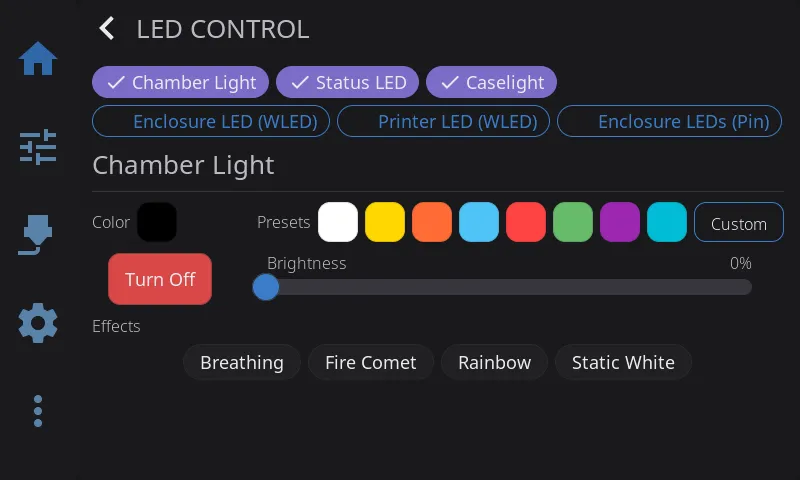
Section titled “LED Controls”Tap the LED widget to open the LED Control Overlay — a full control panel for all your printer’s lighting. What you see depends on your hardware.
Strip Selector
Section titled “Strip Selector”If you have more than one LED strip configured, a row of chips at the top lets you pick which strip to control. The overlay heading updates to show the selected strip name.
Color & Brightness (Klipper Native LEDs)
Section titled “Color & Brightness (Klipper Native LEDs)”For neopixel, dotstar, and other Klipper-native strips:
- Color presets: 8 preset swatches — White, Warm White, Orange, Blue, Red, Green, Purple, Cyan
- Custom color: Tap the custom color button to open an HSV color picker. Pick any color — HelixScreen automatically separates it into a base color and brightness level
- Brightness slider: Adjust from 0-100%, independent of color selection
- Color swatch: Shows the actual output color (base color adjusted by current brightness)
- Turn Off: Stops any active effects and turns off the selected strip
Output Pin Lights
Section titled “Output Pin Lights”For [output_pin] lights (auto-detected by naming convention):
- PWM pins: Brightness slider from 0-100%
- Non-PWM pins: Simple on/off toggle
- Color controls are hidden since output pins don’t support color
LED Effects
Section titled “LED Effects”If you have the klipper-led_effect plugin installed:
- Effect cards appear for each available effect, filtered to the currently selected strip
- The active effect is highlighted with an accent border
- Stop All Effects button kills all running effects at once
- Tap any effect card to activate it
WLED Controls
Section titled “WLED Controls”For WLED network-connected strips:
- On/Off toggle to control the strip power
- Brightness slider from 0-100%
- Preset buttons for each WLED preset — fetched directly from your WLED device, with the active preset highlighted
Macro Device Controls
Section titled “Macro Device Controls”Custom macro devices you’ve configured in LED Settings appear with controls matching their type:
- On/Off devices: Separate “Turn On” and “Turn Off” buttons
- Toggle devices: A single “Toggle” button
- Preset devices: Named buttons for each preset action
Camera Widget
Section titled “Camera Widget”The Camera widget shows a live view from your webcam. It works with any MJPEG stream configured in Moonraker (crowsnest, camera-streamer, ustreamer, etc.).
- Make sure your webcam is working in Mainsail or Fluidd first
- Open Edit Mode on the Home Panel (long-press)
- Tap + to open the Widget Catalog
- Add the Camera widget
- Resize to your preferred size (up to 4x3)
Tap the camera feed to open a fullscreen view. Tap again or press back to return.
Rotation & Flip
Section titled “Rotation & Flip”If your camera is mounted at an angle or its image comes in mirrored, you can correct it without changing anything in Moonraker:
- Enter Edit Mode (long-press the grid)
- Tap the Camera widget to select it
- Tap the gear icon in the upper-left corner to open the Camera configuration modal
- Adjust the settings and tap Save (or Cancel to discard)
The modal offers:
- Rotation — rotate the feed by 0°, 90°, 180°, or 270°. The current rotation is highlighted.
- Flip — toggle Horizontal and/or Vertical mirroring. Each can be on or off independently.
Your rotation and flip choices are applied on top of (combined with) any flip Moonraker is already doing, so if Moonraker already mirrors the image, toggling the matching flip here cancels it back out.
Stream Status
Section titled “Stream Status”While the feed is loading or unavailable, the widget shows a status message instead of video:
- No Camera — no webcam is configured or detected yet
- Connecting Camera… — the stream is being established
- Error messages — if the stream can’t be reached, the underlying error is shown so you know what went wrong
Once the first frame arrives, the status text disappears and the live image takes over.
At the smallest size (1x1) the widget shows only a camera icon and does not stream — tap it to open the fullscreen view, which starts the stream on demand. To save power, the stream also pauses automatically when the screen sleeps or when another overlay covers the widget, and throttles down while you’re in Edit Mode.
Frame Rate
Section titled “Frame Rate”The camera’s target frame rate is read from your Moonraker webcam configuration (defaulting to 15 fps if not set). There’s no separate frame-rate control in HelixScreen — adjust it in Moonraker (the same place Mainsail and Fluidd read it from).
Performance Tip
Section titled “Performance Tip”For the best camera streaming performance on Raspberry Pi, install libturbojpeg0:
sudo apt install libturbojpeg0This enables SIMD-accelerated JPEG decoding, which is 3-5x faster than the built-in software decoder. HelixScreen detects and uses it automatically — no configuration needed. Without it, the camera still works fine, just with slightly higher CPU usage.
Note: This only applies to Raspberry Pi. The installer attempts to install this package automatically, but if it fails (e.g., offline install), you can add it later with the command above.
Printer Manager
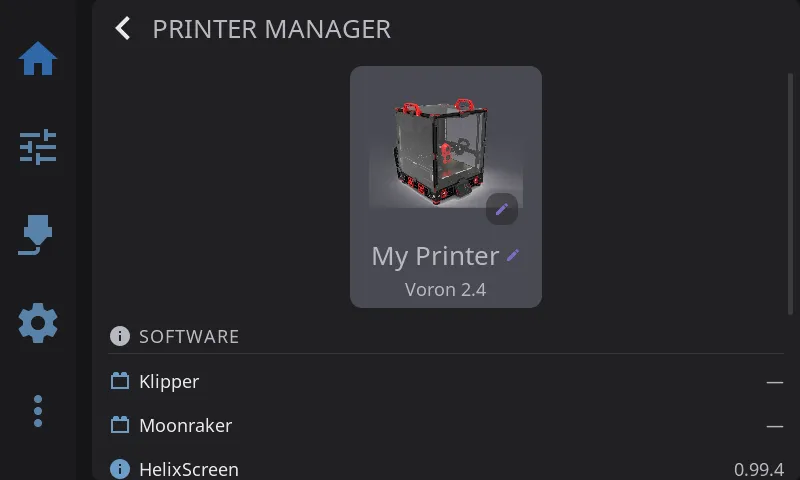
Section titled “Printer Manager”Tap the Printer Image widget to open the Printer Manager overlay. This is your central place to view and customize your printer’s identity.
Changing the Printer Name
Section titled “Changing the Printer Name”- Tap the printer image on the Home Panel to open the Printer Manager
- Tap the printer name (shown with a pencil icon) — it becomes an editable text field
- Type your new name (e.g., “Workshop Voron”, “Printer #2”)
- Press Enter to save, or Escape to cancel
The name defaults to “My Printer” if left empty. It’s saved to your config file and persists across restarts.
Auto-import: If you’ve already named your printer in Mainsail or Fluidd, HelixScreen automatically picks up that name on first connection — no need to re-enter it.
Sync: When you rename your printer in HelixScreen, the new name is automatically pushed to Mainsail and Fluidd so all your interfaces stay in sync.
Tip: You can also set the name directly in the config file under the
printer_namekey — see Configuration Reference.
Correcting the Printer Model
Section titled “Correcting the Printer Model”Directly below the printer name, the model row shows the model HelixScreen has recorded for this printer — or nothing at all, when detection could not identify it with confidence. Tap the row to change it:
- Tap the printer image on the Home Panel to open the Printer Manager
- Tap the model row (marked with a pencil icon)
- Pick the model that matches your printer from the list
- The overlay closes and the choice is saved immediately
The list is filtered to your printer’s motion type, the same way the setup wizard filters it. Picking a model loads that printer’s known behaviour — the print macros HelixScreen calls, which fans it treats as part cooling versus hotend, and how its calibration flows behave.
When you need this: automatic detection declines to guess when the evidence is inconclusive, and on printers that look identical over the network it can settle on the wrong sibling. Correcting the model here fixes both cases — no need to delete the printer and run setup again. Detection will not overwrite a model you chose yourself.
Changing the Printer Image
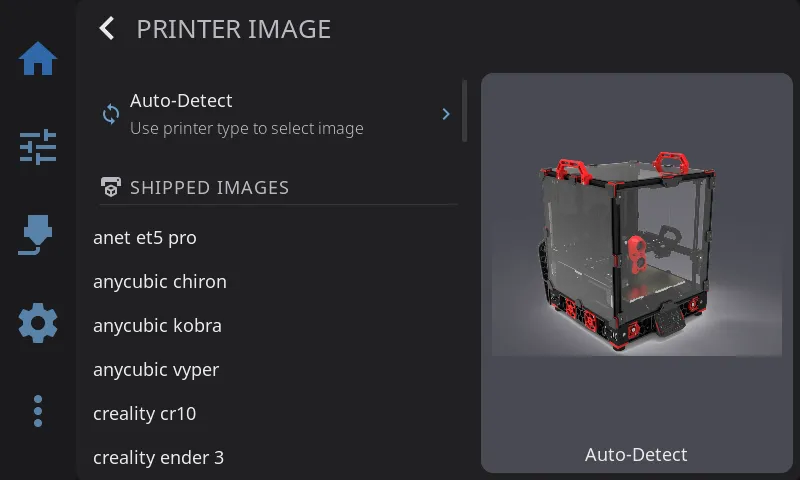
Section titled “Changing the Printer Image”- Tap the printer image on the Home Panel to open the Printer Manager
- Tap the printer image again (marked with a pencil badge) to open the Image Picker
- The picker shows a scrollable list on the left and a live preview on the right
- Choose from one of three sources:
- Auto-Detect (default) — HelixScreen selects an image based on your printer type reported by Klipper
- Shipped Images — Over 25 pre-rendered images covering Voron, Creality, FlashForge, Anycubic, RatRig, FLSUN, and more
- Custom Images — Your own images (see below)
- Tap an image to select it — your choice takes effect immediately
Using Custom Printer Images
Section titled “Using Custom Printer Images”You can use your own printer photo or rendering:
Option A: Copy to the custom images folder
| Platform | Custom images directory |
|---|---|
| MainsailOS (Pi) | ~/helixscreen/config/custom_images/ |
| AD5M Forge-X | /opt/helixscreen/config/custom_images/ |
| AD5M Klipper Mod | /root/printer_software/helixscreen/config/custom_images/ |
| K1 Simple AF | /usr/data/helixscreen/config/custom_images/ |
Copy a PNG, JPEG, BMP, or GIF file into the directory, then open the Image Picker — your image appears under the Custom Images section.
Option B: Import from a USB drive
- Insert a USB drive containing image files into your printer’s host
- Open the Image Picker
- A USB Import section appears at the bottom showing images found on the drive
- Tap an image to import it — HelixScreen copies and converts it automatically
- Once imported, the image appears under Custom Images and the drive can be removed
Image requirements:
- Formats: PNG, JPEG, BMP, or GIF
- Maximum file size: 5 MB
- Maximum dimensions: 2048x2048 pixels (resize before importing if larger)
- HelixScreen automatically generates optimized display variants
Removing a custom image:
Delete the image files from the custom_images/ directory via SSH:
cd ~/helixscreen/config/custom_images/ # adjust path for your platformrm my-printer.png my-printer-300.bin my-printer-150.binIf the deleted image was active, HelixScreen falls back to auto-detect.
Software Versions
Section titled “Software Versions”Below the identity card, the overlay displays current software versions for Klipper, Moonraker, and HelixScreen, with update indicators when new versions are available.
Hardware Capabilities
Section titled “Hardware Capabilities”A row of chips shows detected hardware capabilities: Probe, Bed Mesh, Heated Bed, LEDs, ADXL, QGL, Z-Tilt, and others depending on your Klipper configuration.
Managing Multiple Printers
Section titled “Managing Multiple Printers”Requires beta features to be enabled and at least two printers configured.
When you have multiple printers configured, the Printer Manager overlay shows a Manage Printers button at the bottom. Tap it to open the printer management screen (same as Settings > Printers).
You can also switch printers directly from the navigation bar. When multiple printers are configured, a badge with your printer’s name appears in the nav bar. Tap it to see a quick-switch menu listing all your printers — tap any printer to switch instantly.
Adding Your First Extra Printer
Section titled “Adding Your First Extra Printer”- Enable beta features if you haven’t already
- Go to Settings > Printers (under the Printer section)
- Tap Add Printer
- The Setup Wizard launches — enter the new printer’s IP address and port, select hardware, and complete the wizard
- After the wizard finishes, you’re connected to the new printer
Switching Between Printers
Section titled “Switching Between Printers”Quick switch (fastest):
- Tap the printer name badge in the navigation bar (bottom of screen)
- Tap the printer you want to switch to
- HelixScreen reconnects and shows a “Connected to [name]” toast
From Settings:
- Go to Settings > Printers
- Tap the printer you want to switch to
- The active printer is marked with a checkmark
Removing a Printer
Section titled “Removing a Printer”- Go to Settings > Printers
- Tap the trash icon next to the printer you want to remove
- Confirm the deletion
- You cannot delete the printer you’re currently connected to, and you cannot delete the last remaining printer
Note: Removing a printer only removes it from HelixScreen. It does not affect the printer itself, its Klipper configuration, or Moonraker.
Next: Printing | Prev: Supported Printers | Back to User Guide