
Advanced
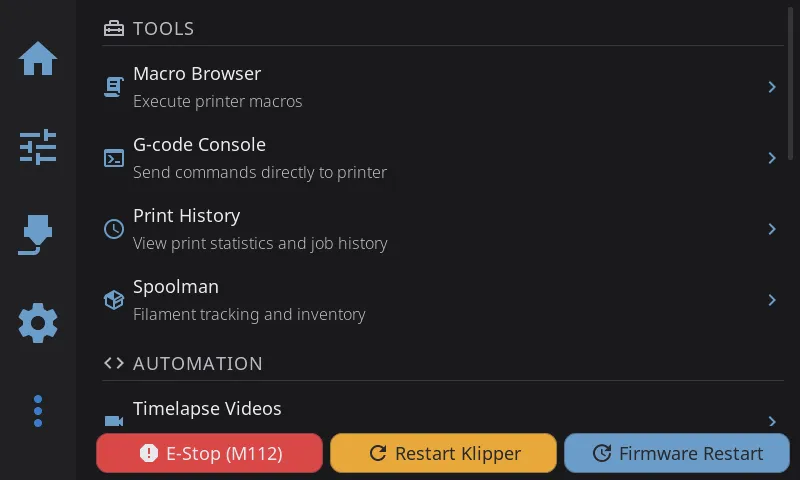
Access via the More icon in the navigation bar.
G-code Console
Section titled “G-code Console”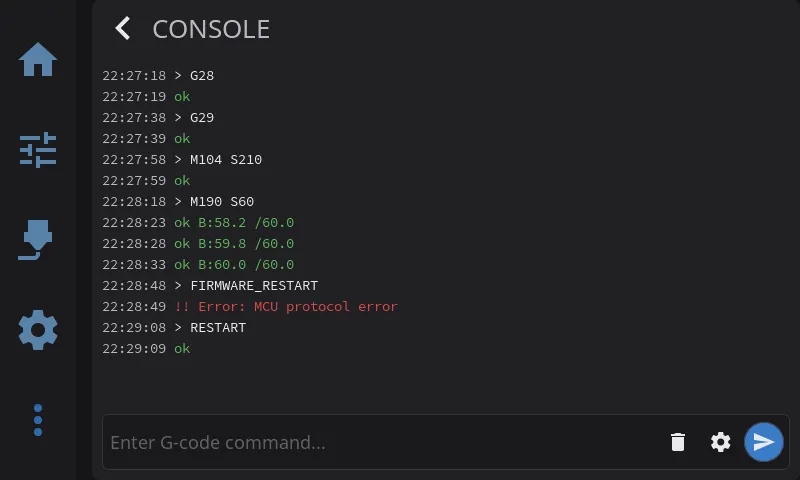
A full-featured G-code terminal for sending commands directly to your printer and viewing Klipper responses in real time.
Opening the console:
- Navigate to Advanced > G-code Console, or
- Add the G-code Console widget to your home panel for one-tap access
Sending commands:
- Type a G-code command in the input field at the bottom (e.g.,
G28,M104 S210) - Press Enter on the keyboard or tap the send button
- The command appears with a
>prefix, and Klipper’s response streams in below
Reusing a command (tap to paste):
Tap any command in the console — the lines prefixed with > — and it drops straight back into the input field, ready to edit and send again. This is the quickest way to re-run a macro you use often, or to fix a typo without retyping the whole line.
- Tapping only fills the input. Nothing is sent until you tap the send button or press Enter, so a stray tap can never re-run a command by accident.
- Only commands are tappable. Klipper’s responses (green) and errors (red) do nothing when tapped.
- Commands sent from Mainsail, Fluidd, or a terminal appear in the console too, and they can be tapped just the same.
- Scrolling still works normally — flicking the log to scroll won’t paste anything.
Command history with a USB keyboard:
If you have a USB keyboard attached, press the Up/Down arrow keys in the input field to walk back through commands you’ve sent, the same way a terminal works. Up to 20 recent commands are remembered within the session. Tap to paste reaches further back — the log holds up to 200 lines — so on a touchscreen it’s usually the better option.
Color coding:
- White: Commands you sent (prefixed with
>) - Green: Successful responses from Klipper
- Red: Errors and warnings (lines starting with
!!orError) - Colored spans: AFC and Happy Hare plugins send colored output that renders inline
Other features:
- Auto-scroll: The console scrolls to show new messages automatically. Scroll up to pause auto-scroll and read history — it resumes when you send a new command
- Timestamps: On medium and larger screens, each line shows an
HH:MM:SStimestamp - Clear button: Tap the trash icon to clear the display (with confirmation)
- Monospace font: Console text uses Source Code Pro for easier reading of G-code output
Filters:
Open the console settings (the tune/settings icon in the console) to control which background chatter is hidden. Both filters are on by default, and your choices are saved:
| Filter | What it hides | Default |
|---|---|---|
| Hide Temperature Reports | Periodic T:.../B:... temperature status lines that Klipper streams continuously |
On |
| Hide Firmware Noise | Raw debug output from printer firmware modules (the exact patterns are defined per printer model) | On |
Turn a filter off if you want to see that output — for example, turn off “Hide Temperature Reports” when you’re watching heater behavior live, or turn off “Hide Firmware Noise” when troubleshooting a specific firmware module.
Macro Execution
Section titled “Macro Execution”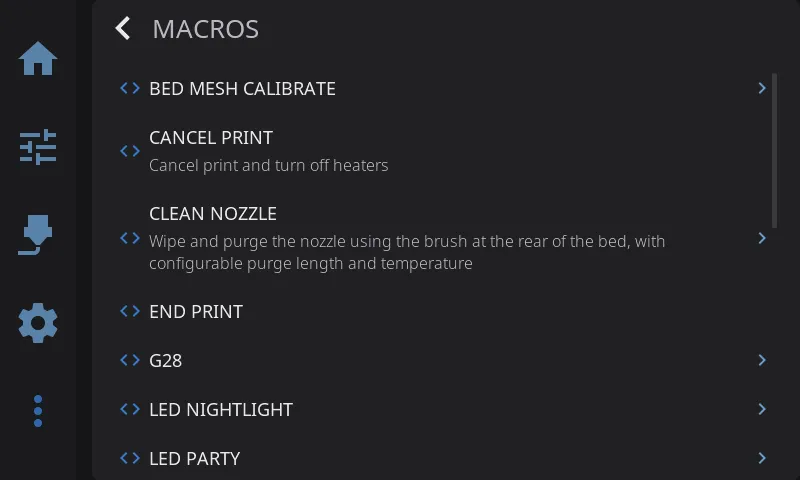
Browse and execute all of your Klipper macros.
Opening the Macros panel:
- Navigate to Advanced > Macros, or
- Add the Macros widget to your home panel for one-tap access
Browsing macros:
- All macros from your Klipper configuration are listed alphabetically
- Names are prettified for readability:
CLEAN_NOZZLEbecomes “Clean Nozzle” - System macros (starting with
_) are hidden by default — reveal them using edit mode (below) - Tap any macro to execute it
Macro parameters:
Some macros accept parameters (variables or arguments defined in your Klipper config). When you tap a macro that has parameters:
- A parameter input form appears showing each parameter with its default value
- Edit the values you want to change, then tap Run to execute
- Parameters are pre-detected when HelixScreen connects to your printer, so there’s no loading delay
If HelixScreen can’t determine the parameters (e.g., complex Jinja2 templates), a freeform text field lets you type raw parameters.
Dangerous macro protection:
These macros show a confirmation dialog before executing:
SAVE_CONFIG— writes configuration changes to diskFIRMWARE_RESTART/RESTART— restarts KlipperSHUTDOWN— shuts down the printer hostM112/EMERGENCY_STOP— emergency stop
Hiding macros you don’t use:
If your macro list is cluttered with macros you never run, you can hide them from the list:
- Press and hold any macro for about a second to enter edit mode
- Every macro now shows a checkbox on the left, and a Save button appears at the top of the panel
- Checked = the macro stays visible in the normal list
- Unchecked = the macro will be hidden
- System macros (the ones starting with
_, normally hidden) also show up here unchecked, so you can reveal one if you need it - Tap a macro’s checkbox to change its state — tapping the row itself no longer runs the macro while you’re in edit mode
- Tap Save to apply your changes. Hidden macros disappear from the normal list immediately
- To leave edit mode without saving, tap Back — your checkbox changes are discarded and the list is unchanged
Note: Your hidden-macro choices are saved per printer and stick around across restarts, so switching to a different printer profile shows that printer’s own macro list.
Configure PRINT_START
Section titled “Configure PRINT_START”HelixScreen’s pre-print skip toggles — Auto bed level, Quad gantry level, Z-tilt adjust, Nozzle clean — can only skip a step if that step is written so it can be turned off. When those operations live inside your PRINT_START (or START_PRINT) macro, they run every time and the toggles can’t reach them.
Configure PRINT_START reads your own macro, finds those operations, and — with your approval — rewrites the macro so each one becomes optional. Afterward, the matching toggle on the print screen actually skips it.
Safety: This feature edits your Klipper printer configuration on the printer. It is a deliberate, consent-based action: nothing is changed until you review each operation and tap Apply Changes. A backup of your config is saved automatically before anything is written, and Klipper restarts once the changes are applied.
Opening the wizard
Section titled “Opening the wizard”- Enable Beta Features first (see Beta Features) — this tool lives behind the beta flag.
- Navigate to Advanced → Configure PRINT_START.
HelixScreen may also prompt you on its own: when it notices skippable steps in your macro, a notification reading “PRINT_START has N skippable operations” appears with a Configure button that opens the same wizard.
If your macro is already set up (or has nothing that can be made optional), you’ll see “Your print start is already fully configured!” instead, and the wizard won’t open.
Reviewing each operation
Section titled “Reviewing each operation”The wizard walks you through one operation at a time (a progress counter like “1 of 3” shows your place). For each one — Bed Mesh, Quad Gantry Leveling, Z-Tilt Adjustment, or Nozzle Cleaning — it asks “Make [operation] Optional?” and explains in plain language what changes.
You have two choices per operation:
| Button | What it does |
|---|---|
| Keep Required | Leave this operation alone — it will always run |
| Make Optional | Rewrite it so the pre-print toggle can skip it |
Note: Homing is never offered here — it’s required for safe printing and can’t be made skippable.
Applying your changes
Section titled “Applying your changes”After the last operation, a Ready to Apply summary lists every change you approved under “Your PRINT_START macro will be updated to give you control over:”.
- The “Create backup of printer.cfg before applying” option is checked by default.
- A reminder notes that “Klipper will restart to apply changes”.
- Tap Cancel to discard everything, or Apply Changes to write them.
While applying, the wizard shows its progress (creating the backup, then writing the changes). When it finishes you’ll see a Setup Complete! confirmation letting you know a backup was saved and the new skip options are now available in the print details before each print. Tap Close to finish.
Tip: The changes are reversible. You can undo them later from the Macro Viewer, or re-run the wizard if you edit your macro again.
Interactive Prompts
Section titled “Interactive Prompts”Some Klipper macros can ask you questions mid-run — “Which lane should I load?”, “Purge complete?”, “Tip formed cleanly?” — using Klipper’s standard prompt protocol. HelixScreen renders these as a native touchscreen dialog automatically. This is common with multi-material systems like Happy Hare / ERCF, and with custom confirmation macros.
You don’t configure anything. Any macro that emits the prompt protocol will pop up a dialog on your screen the moment it runs.
A prompt dialog shows:
- A title at the top (for example, the name of the operation)
- One or more lines of explanatory text
- Buttons you tap to answer — each button runs a G-code command and closes the dialog
Buttons are color-coded by the macro author to signal intent:
| Color | Typical meaning |
|---|---|
| Blue (primary) | The main / default action |
| Green | A confirming or “go” action |
| Amber | Caution — think before tapping |
| Red | A stop, cancel, or destructive action |
Note: Colors are chosen by whoever wrote the macro — they’re a hint, not a rule. Always read the button label. Macro authors can also specify an exact custom color.
Longer menus wrap onto multiple lines automatically, and some macros place a row of footer buttons across the bottom of the dialog (often used for “Cancel” or menu navigation). If a prompt is flagged as an error, a red warning icon appears next to the title.
Tip: Tapping any button sends its command straight to the printer and dismisses the dialog. If you’re not sure what a button does, check the macro that produced the prompt — HelixScreen simply displays whatever the macro defines.
Probe Management
Section titled “Probe Management”View and control your Z probe. HelixScreen auto-detects your probe type (Cartographer, Beacon, BLTouch, BTT Eddy, Mellow Fly Eddy, Voron Tap, Klicky, or standard probe) and shows type-specific controls.
- Navigate to Advanced > Probe Management (only visible when a probe is detected)
- View probe type, Z-offset, and sensor readings (coil temperature for Cartographer, sensor temperature for Beacon)
- Use type-specific buttons (Calibrate, Touch Cal, Scan Cal, Auto-Cal, Deploy/Dock, etc.)
- Access universal actions: Accuracy Test, Z-Offset Calibration, Bed Mesh
- Edit probe configuration values (offsets, samples, speed, tolerance)
For full details, see Calibration & Tuning — Probe Management.
Power Device Control
Section titled “Power Device Control”Control Moonraker power devices from the full power panel or the home panel quick-toggle button.
Home Panel Quick Toggle
Section titled “Home Panel Quick Toggle”A power-cycle button appears on the home panel when power devices are configured:
- Tap to toggle your selected power devices on or off
- Long-press to open the full power panel overlay
- The button shows a danger (red) variant when devices are on, and muted when off
Full Power Panel
Section titled “Full Power Panel”- Navigate to Advanced > Power Devices, or Settings > System > Power Devices (hidden when no power devices are detected)
- Toggle individual devices on/off with switches
Main Power Button section:
At the top of the power panel, a “Main Power Button” section lets you choose which devices the home panel quick-toggle controls:
- Selection chips appear for each discovered power device
- Tap chips to include or exclude devices from the home button
- Your selection is saved automatically
Auto-Discovery
Section titled “Auto-Discovery”HelixScreen automatically discovers power devices from Moonraker when it connects to your printer. On first discovery, all devices are selected for the home panel button by default. The Power Devices row in the Advanced panel is hidden when no power devices are available.
Locking During Prints
Section titled “Locking During Prints”A power device can be locked while a print is running so you can’t accidentally cut power mid-job. This is controlled by Moonraker, not HelixScreen: any device configured with locked_while_printing in your moonraker.conf is affected.
A locked device behaves as follows for the whole time a job owns the printer — starting the moment you tap Start Print. The preparing phase counts too (heating, homing, and leveling before the first layer): the toolhead is already moving then, so cutting power mid-preparation is just as destructive as cutting it mid-print. Printing and paused states are covered as well:
- Its toggle switch is disabled — tapping it does nothing
- A lock icon appears on the row
- The status text reads “Locked during print”
When no job is running, the device unlocks and toggles normally again — that includes cancelling during preparation, which unlocks the device without a print ever having started. Devices without locked_while_printing are never locked.
Print History
Section titled “Print History”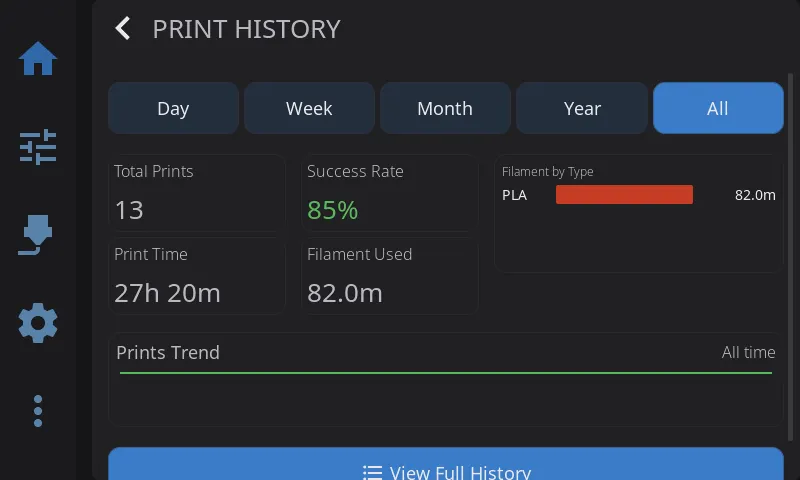
HelixScreen keeps a record of your completed, failed, and cancelled prints, sourced from Moonraker’s job history. Open it from Advanced > Print History. You get a dashboard of statistics and trend charts, a searchable and sortable list of past jobs, and per-job details with reprint and delete.
See Print History for the full guide.
Notification History
Section titled “Notification History”Review past system notifications:
- Tap the Notifications widget on the Home screen
- Scroll through history
- Tap Clear All to dismiss
Color coding:
- Blue: Info
- Yellow: Warning
- Red: Error
Timelapse
Section titled “Timelapse”Record timelapse videos of your prints automatically using the moonraker-timelapse plugin.
If the timelapse plugin is not installed, HelixScreen detects this and offers a guided Install Wizard:
- Navigate to Advanced > Timelapse Setup
- Follow the on-screen instructions to install the plugin via SSH
- HelixScreen will configure your
moonraker.confautomatically - After installation, the setup row is replaced by timelapse settings and video browser
Settings
Section titled “Settings”Navigate to Settings > Printing > Timelapse to configure:
- Enable/disable timelapse recording
- Recording mode: Layer Macro (snapshot at each layer) or Hyperlapse (time-based)
- Framerate: 15, 24, 30, or 60 fps
- Auto-render: Automatically create videos when prints finish
A quick toggle button also appears on the print status panel to enable/disable timelapse without leaving the print view.
Video Browser
Section titled “Video Browser”Navigate to Advanced > Timelapse Videos to browse your recorded timelapses:
- Thumbnail grid with responsive card sizing that adapts to your screen
- Each card shows a video thumbnail, filename, file size, and date
- Tap a card to play the video fullscreen (requires mpv or ffplay on your device)
- Long-press a card to delete it (with confirmation)
- Videos are stored on your printer and managed by the timelapse plugin
Rendering
Section titled “Rendering”When frames have been captured during a print, a render section appears above the video grid:
- Shows the number of captured frames, print filename, and capture date
- A progress bar appears during rendering with status text
- Tap Render Now to manually create a video from captured frames
- When rendering completes, the video list refreshes automatically to show the new video
- A toast notification appears at the start and end of rendering
Notifications
Section titled “Notifications”| Event | Notification |
|---|---|
| Rendering starts | “Rendering timelapse…” |
| Rendering completes | “Timelapse rendered successfully” |
| Rendering fails | “Timelapse render failed” with error details |
Next: Beta Features | Prev: Print History | Back to User Guide