
Updates
This content is for 1.1 (beta). Switch to the stable release docs.
Settings > Updates is where HelixScreen updates itself. Pick which releases you want, check for a new one and install it, all from the touchscreen.
On the Settings screen, the Updates row tells you where things stand: Up to date, the version waiting for you (for example 1.1.1 available), Checking…, Check failed, or your installed version (such as Version 1.1.0) before the first check. On printers whose firmware updates HelixScreen, it reads Managed by firmware.
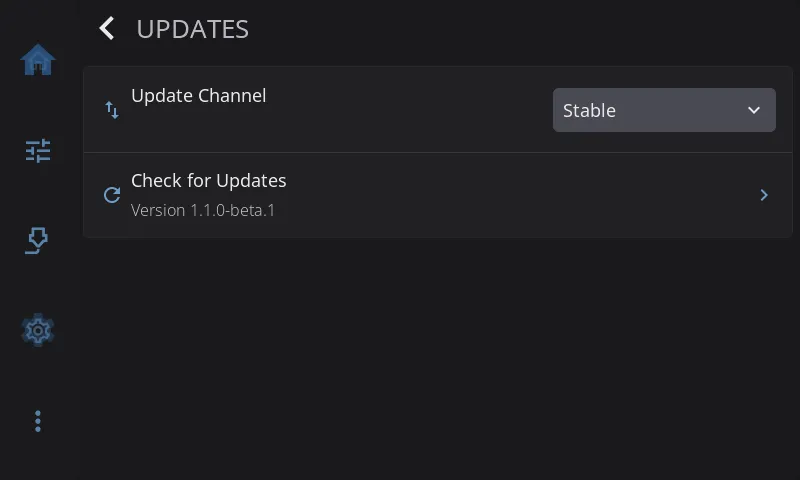
Update Channel
Section titled “Update Channel”Which releases you get:
| Channel | What you get |
|---|---|
| Stable | Tested releases only. Recommended |
| Beta | Preview builds with new features. May have rough edges |
| Dev | Development builds. Only listed once beta features are on, and needs a dev_url in /var/lib/helixscreen/update_urls.json (a file only root can edit; see CONFIGURATION) |
Changing the channel checks the new channel straight away.
Note: Choosing Dev without a
dev_urlinupdate_urls.jsonshows “Dev channel requires dev_url in update_urls.json” and doesn’t check. Dev builds are meant for people working on HelixScreen. Most people should stay on Stable or Beta.
Check for Updates
Section titled “Check for Updates”Looks for a newer release on your channel. Until you check, the row shows the version you have. After a check, it shows the result, such as the version that’s available.
If there’s a new version, a dialog walks you through installing it:
- Update Available: shows the new version. Tap Install to start, or Cancel.
- Downloading…: a progress bar shows the download. You can still Cancel here. The dialog closes at once, but the download finishes its current piece in the background before it’s thrown away. If you start another update before then, you’ll see Update Failed with “Previous download still finishing”. Wait a few seconds and tap Retry.
- Verifying…: HelixScreen checks the download before installing it.
- Installing…: the new version is put in place. Don’t turn off the printer now.
- Update installed!: the new version is in place.
- Hang on, we’ll be right back!: HelixScreen restarts into the new version.
Steps 5 and 6 only flash up for a moment. The install is already done by then; the pause just lets you see it worked.
If something goes wrong, Update Failed offers Retry to try again or Close to give up for now.
Caution: Once installing starts, leave the printer on until HelixScreen restarts by itself. Cutting power during an install can leave HelixScreen broken.
On Android, installing opens the Play Store listing if you installed from Google Play. Otherwise it opens the GitHub release page, where you download the new APK and install it over the old one.
Install Update
Section titled “Install Update”Only shown when a check has found a version to install.
Opens the update dialog above at the Update Available step, so you can install a version you found earlier.
If you switched to a channel whose latest release is older than the version you have (going from Beta back to Stable, for example), HelixScreen first asks Install Older Version?. Anything added since that older version will be gone.
When updates come from somewhere else
Section titled “When updates come from somewhere else”Some installs can’t update themselves. The page tells you so instead of showing buttons that wouldn’t work.
- Software Updates: Managed by your firmware. Your printer’s firmware includes HelixScreen and updates it along with everything else. The channel, check and install rows are hidden. Update the printer’s firmware to get a newer HelixScreen.
- Software Updates: Not available here. Update from a terminal. HelixScreen can see new versions but can’t write to its own install folder. Tap the row for a QR code that links to instructions: you run the HelixScreen installer with
--updatefrom a terminal on the printer. Upgrading lists the other ways to update.