
Camera
This content is for 1.1 (beta). Switch to the stable release docs.
If your printer has a webcam configured in Moonraker, HelixScreen can show the live feed both as a home-dashboard widget and as a standalone fullscreen viewer. You can rotate and flip the image to match how your camera is mounted.
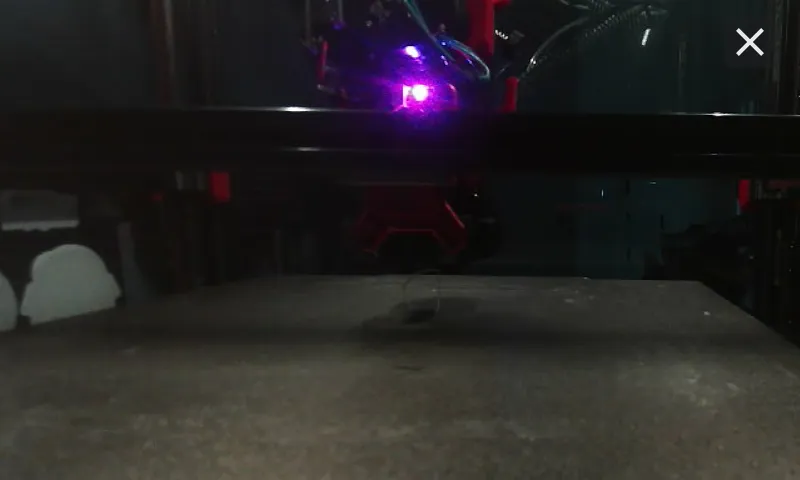
Viewing the Camera
Section titled “Viewing the Camera”There are two ways to see the feed:
- Home widget — add the Camera widget from the Home dashboard’s edit mode (long-press the dashboard, then tap Add Widget). It shows the live feed inline. Tap it to expand into the fullscreen viewer.
- Camera button while printing: when HelixScreen runs on a separate screen or device from the printer (not on the printer itself) and a webcam is detected, the print screen’s header shows a Camera button that opens the fullscreen viewer.
- Standalone fullscreen viewer — open Settings > Devices > Camera to view the live feed fullscreen without adding a widget. This entry only appears when a webcam is detected (an enabled webcam configured in Moonraker).
The feed is decoded as an MJPEG stream when one is available. If only a snapshot URL is configured, HelixScreen falls back to periodically polling that snapshot image instead.
Choosing Between Several Cameras
Section titled “Choosing Between Several Cameras”When Moonraker lists more than one enabled webcam, HelixScreen picks one automatically: the first camera whose service is an MJPEG streamer (mjpegstreamer, ustreamer) and whose serving process is running, otherwise the first camera with a usable snapshot image, polled. That automatic choice is what the standalone fullscreen viewer and the QR scanner always show.
The home widget can be pointed at a specific camera instead. Open the camera configuration (edit mode, then the gear icon) and choose it under Source:
- Automatic — the camera HelixScreen would pick on its own.
- A named camera — one of the enabled webcams in Moonraker’s list. A camera whose service is not MJPEG (WebRTC, HLS, an IP camera) is marked Snapshot only: HelixScreen will poll its snapshot image rather than stream it. A camera whose service is not running is marked Unavailable.
The choice is saved with the widget by name, so it survives a change of the printer’s address. If the named camera later disappears from Moonraker, is disabled, or its service stops, the widget falls back to the automatic choice rather than showing No Camera, and returns to the named camera when it is back. Each widget has its own Source, so two camera widgets on one dashboard can show two different feeds — each one is a separate stream and a separate decode, so expect the extra CPU cost on small boards.
Stream Status
Section titled “Stream Status”While the camera is connecting or unavailable, the widget shows a status message over a spinner:
| Status | Meaning |
|---|---|
| Connecting Camera… | HelixScreen is establishing the stream; the status clears once the first frame arrives |
| No Camera | No webcam is configured, or the stream couldn’t be reached |
At the smallest widget size (1x1) the camera shows only an icon and does not stream — make the widget larger to see the live feed.
Rotation & Flip
Section titled “Rotation & Flip”To correct a camera that’s mounted upside-down or mirrored, open the camera configuration:
- Enter Home dashboard edit mode.
- Tap the gear icon on the Camera widget.
The configuration dialog offers:
- Source — which camera to show (see above); only listed when Moonraker names at least one camera
- Rotation — 0°, 90°, 180°, or 270°
- Flip — Horizontal and/or Vertical
Tap Save to apply, or Cancel to discard. The transform is saved with the widget so it persists across restarts.
Performance Notes
Section titled “Performance Notes”HelixScreen throttles the camera stream to keep the UI responsive and save resources:
- The stream runs at the frame rate configured in Moonraker (defaulting to 15 fps if not specified).
- While another overlay is covering the widget, the stream is paused and resumes when the overlay closes.
- During Home dashboard edit mode, the frame rate is reduced so editing stays smooth.
- When the display goes to sleep, the camera stream stops entirely and restarts on wake.
Next: Print History | Prev: Security & Screen Lock | Back to User Guide